Choose an editor mode
Learn the four email editors, when each fits, and how sample data drives the live preview.
On this page
Choose an editor for the message you need to make. Start a product announcement in Dynamic Composer, write a simple personal note in Plain Composer, or bring existing source into MJML Code or HTML Code. All four share the sender, data, preview and test controls.
The right panel has Design (Outline in code editors), Personalize, Data and Checks tabs. Use Personalize for prompts, runtime model settings and Estimate; use Checks for readiness issues. The maxinja input stays at the bottom of the panel. Preview and Send test are in the toolbar.
You choose the editor and Marketing or Transactional mode when creating the email. The sending mode is fixed; the editor has only the conversion paths described below.
The four editors
| Editor | Start here when | What you edit |
|---|---|---|
| Dynamic Composer | You want a visual, responsive announcement or newsletter | Blocks and columns compiled from MJML |
| Plain Composer | You want a simple note with minimal styling | A flat arrangement of HTML blocks |
| MJML Code | You already use MJML or need control over its source | MJML that compiles to HTML |
| HTML Code | You have an existing HTML design | HTML source you maintain and test |
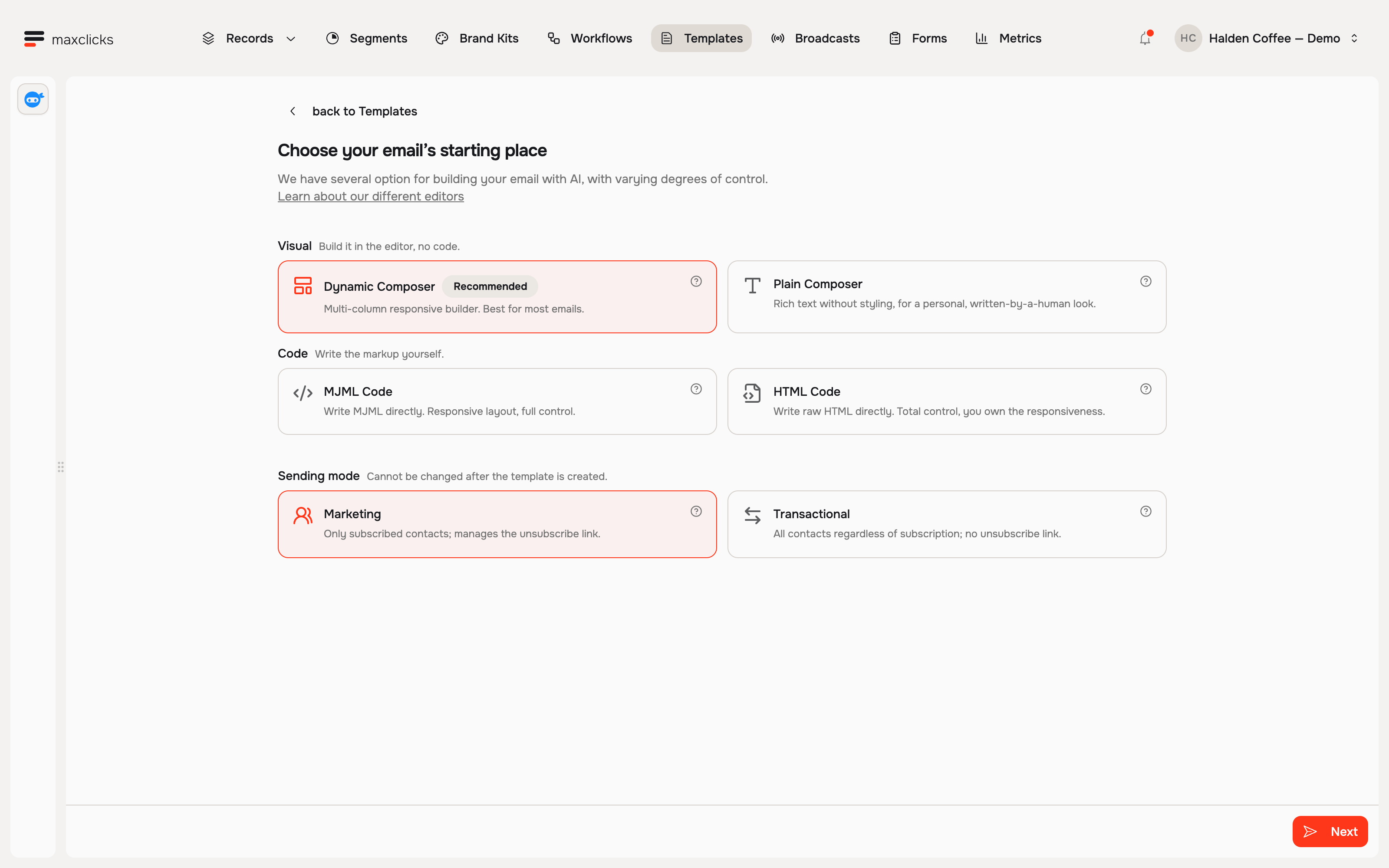
When to use each editor
Dynamic Composer
For a first announcement, add a heading, a short product description, an image and a button. Set the button’s destination, select your brand and inspect the layout at narrow and wide preview widths. Dynamic supports columns, preview text and links on images. Responsive compilation helps with layout, but you still need an inbox test.
Plain Composer
Use a short greeting, a paragraph and one link for a personal note. Plain Composer produces HTML, not a plain-text-only message. It has no dedicated preview-text field or image links.
MJML Code
Choose this when you are comfortable editing MJML. It keeps MJML’s compilation to responsive HTML while letting you control the source. Check compilation errors and test the resulting message in your target clients.
HTML Code
Paste or write your HTML and inspect the finished result. You own the layout and compatibility of this source. Liquid and Adaptyle remain available; an HTML import does not remove the need to define the data they use.
Switch editors
Only the visual editors expose Switch editor. The supported paths are:
- Dynamic Composer → MJML Code.
- Dynamic Composer → Plain Composer.
- Plain Composer → HTML Code.
These conversions cannot be reversed in that email. Read the confirmation before accepting. Dynamic → Plain drops preview text and image links; check buttons, spacing and content after conversion, then send a test.
Preview with sample data
Before testing an announcement, choose one customer with complete data and one without a first name or purchase history. Both should get a coherent message with correct links. A preview covers the selected sample, not the whole audience.
Where sample data lives
Open Data. Inspect the expected property names and choose values in Sample. Use Edit as JSON when you need a precise payload. These are preview inputs; editing them does not change the stored customer or the broadcast audience.
The default is a real record, not an invented one
Contact and object sample properties can bind to real records from the selected schema. Check which record was selected and choose another when needed. Event properties need a suitable sample too; do not assume the first visible customer exercises every condition in your email.
When there is nothing to bind
Where no record is available, use Generate or enter JSON. In Edit as JSON, Generate sample data by AI can generate a whole sample and uses credits. Generated values are examples, not evidence about your customers.
Open Preview and inspect Base for Liquid values and layout. If the message contains Adaptyle prompts, choose Personalized → Generate preview to review its generated wording. Check both complete and sparse data, then send the rendered sample to your own inbox. See sample data for binding and expansion details.
Thumbnails
maxclicks generates thumbnails from rendered content to help identify emails in lists. Open the composer for a content review; a thumbnail does not establish that personalization, links or delivery are ready.
What stays the same across editors
All editors share sender settings, Liquid and Adaptyle, expected data, sample previews, brand footer handling and test sends. The format affects layout controls: the HTML editors have no dedicated preview-text field, and Plain Composer also lacks image links.
See personalize with Liquid and Adaptyle for the difference between a fixed data value and generated wording.
Which editor should I pick
Use Dynamic Composer for a new visual campaign. Choose Plain Composer for a simple note, MJML Code for an MJML source workflow, or HTML Code for existing HTML. Build a small representative message and inspect it before investing in a full design.
Frequently asked questions
Can I convert an HTML or MJML code email back to a visual composer?
No. Visual-to-code conversions are one-way. Start separate email content in the desired visual composer when you need a different starting point, and review its data, sender and sending mode.
Does Plain Composer send plain text only?
No. It creates HTML from a flat list of blocks. It supports images, links, buttons, Liquid and Adaptyle, but has no columns, dedicated preview-text field or linked-image control.
Does changing the sample update the customer?
No. Sample inputs are for the preview. Editing their JSON does not update the stored record or alter the broadcast audience. A real send resolves its execution inputs separately.
Did this article answer your question?