Loading the guide…
Create your first contact schema
Learn what a contact schema is, which fields come built in, and how to create and set a default schema for your people.
On this page
A contact schema is the shape of the people you message. It defines what a "contact" means in your space: which fields each person has, what type each field is, and what maxclicks will accept when data comes in. Everything downstream, from segments to broadcasts to workflows, relies on this structure being clear and consistent.
You usually get your first contact schema for free during the space setup wizard. This guide explains what that schema contains and how to create another when your business needs more than one.
What a contact schema is
maxclicks stores your business records against schemas. A contact schema describes entities that can receive communication, such as Customer, Subscriber, or Student. It is one of three schema types, alongside objects (any other business entity, like a Product) and events (things that happen, like a Purchase completed). To understand how the three fit together, read understand schemas, contacts, objects, and events.
The schema is also a validation gate. When a contact enters maxclicks, from an import, a form, the API, or a workflow, it is checked against the schema. Fields the schema does not know about are dropped rather than stored. That is why defining your schema well, before you bring in data, matters.
Base attributes you get automatically
Every contact schema ships with a fixed set of base attributes that you cannot remove or rename. They cover the fields almost every business needs, so you rarely start from a blank slate.
| Attribute | What it holds |
|---|---|
| The primary email address, used to send and to match contacts. | |
| firstName, lastName | The parts of a person's name. |
| fullName | A single full-name field, useful when you do not split first and last. |
| phone | A phone number. |
| avatarUrl | A link to a profile image. |
| userId | Your own external identifier for the person, such as an ID from your app. |
| notes | Free-form notes about the contact. |
| tags | Plain labels for grouping and filtering. |
| subscriptions | Which channels the contact has consented to. Currently email. |
| topicIds | Which communication topics the contact belongs to. Marketing under a topic only reaches its members. |
| source | How the contact entered: import, api, form, manual, workflow, or integration. Set by maxclicks. |
| createdAt, updatedAt | When the contact was created and last changed. Set by maxclicks. |
These base fields are also the ones maxclicks uses to recognize the same person across sources, which matters when you import your contacts from a CSV file.
Create a contact schema
If you need a schema beyond the one setup created, you add it from settings.
- Open your schemas
Go to Settings, then Schemas in the left-hand sidebar. You see every schema in your space.
- Add a contact schema
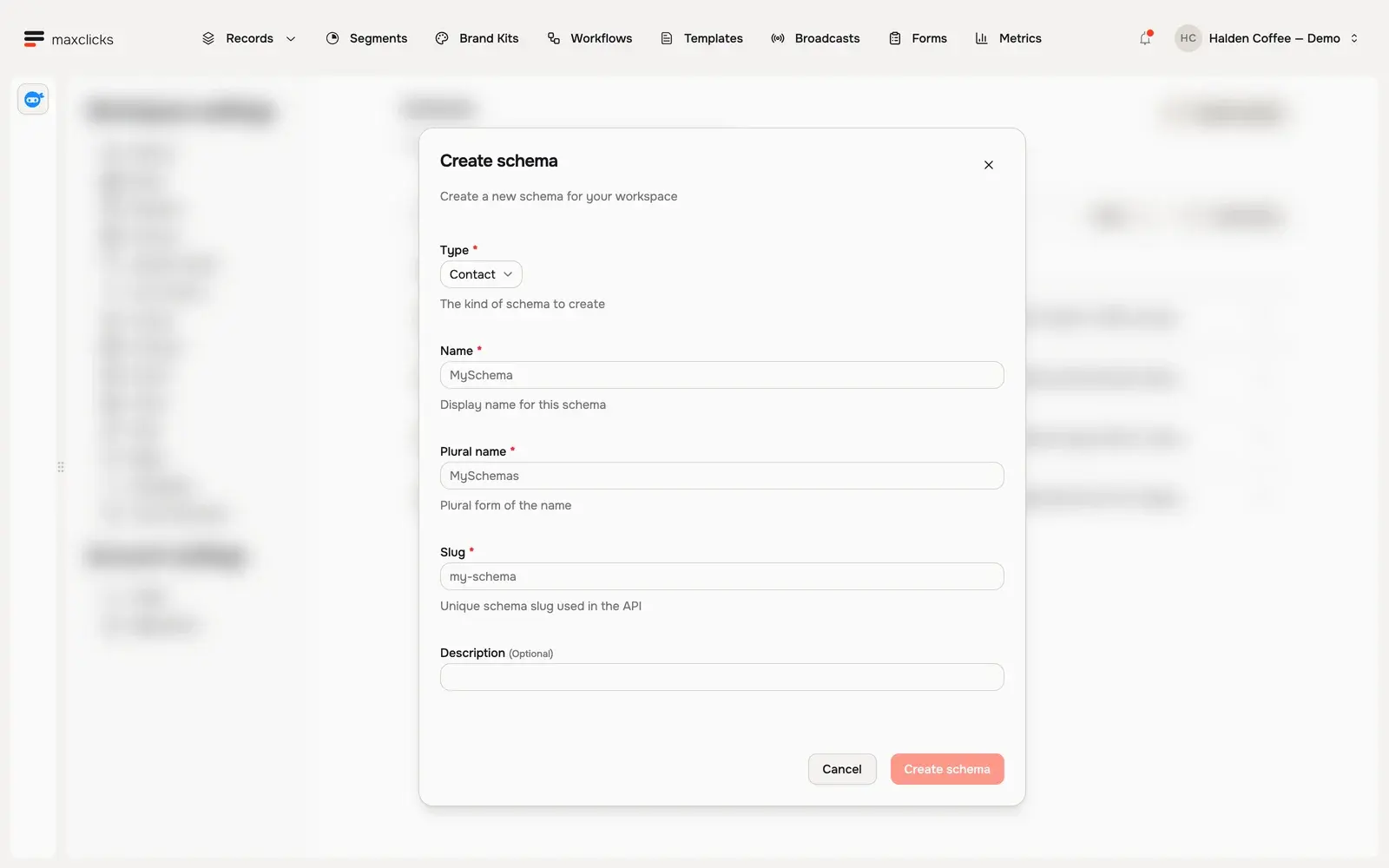
Choose to add a schema and select the Contact type. Give it a clear singular name like Customer.
- Set the name, plural, and slug
Enter a plural form (Customers) and confirm the slug, which maxclicks suggests from the name. The slug is used in URLs and stays fixed, so keep it simple. Add an optional description to explain what the schema is for.
- Create the schema
Save to create the schema. maxclicks adds all the base attributes for you, so it is immediately usable.
Your default contact schema
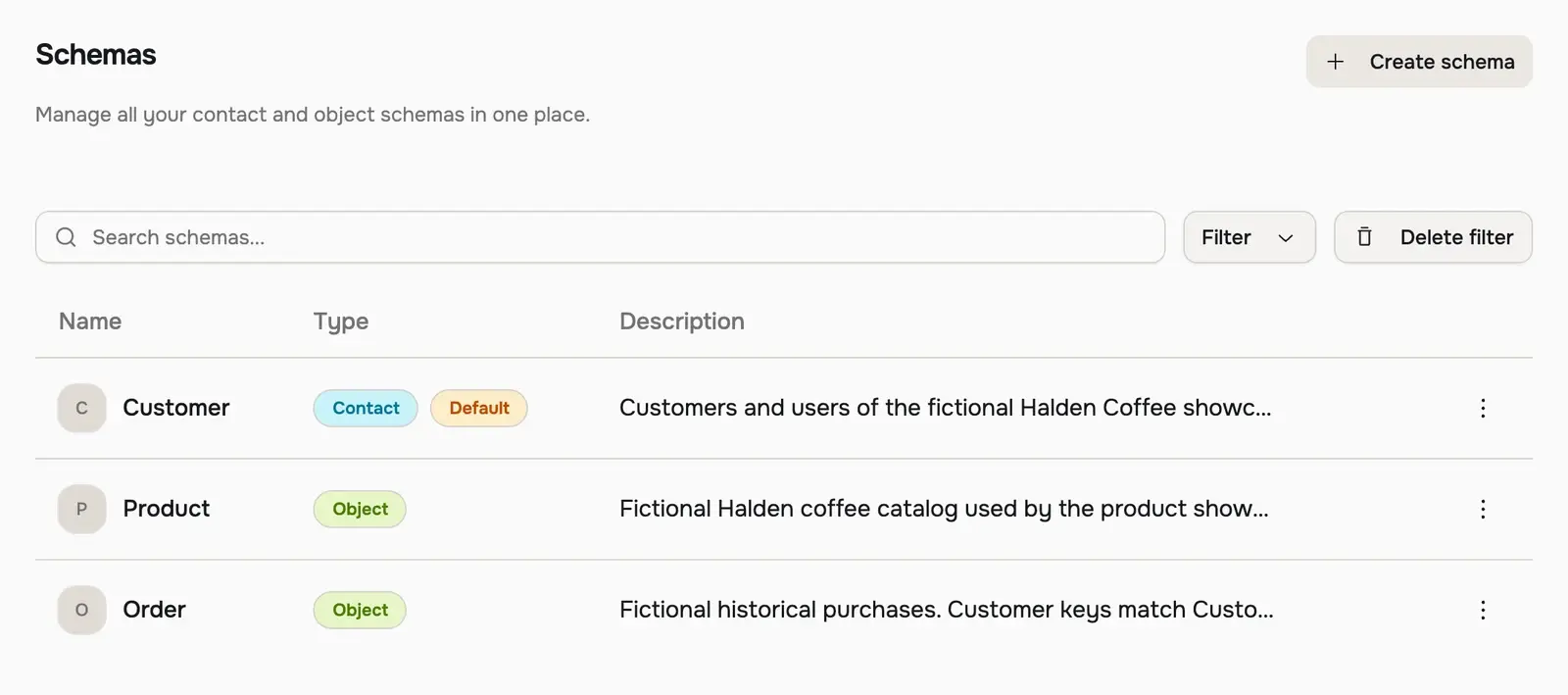
Your space tracks a default contact schema that pre-fills inputs across the app, for example when a form or a broadcast needs to pick an audience. The first contact schema you create becomes the default automatically.
Two rules follow from this. Once your space has at least one contact schema, it must always keep one, and your last contact schema cannot be deleted. And deleting any schema deletes all of its records, so treat schema deletion with care.
Add your own attributes
Base attributes cover the essentials, but most businesses need more: a plan tier, a signup date, a lifetime value. You add these as custom attributes on your schema, choosing a type such as text, number, date, or a dropdown of options.
Custom attributes are where your schema starts to reflect your business. They also carry the two features base attributes do not need: auto-fill, and evaluated values computed on demand. To add them, read add attributes to a schema.
Once your schema has the fields you need, bring in your people. The fastest way for an existing list is to import your contacts from a CSV file.
Frequently asked questions
Do I have to create a contact schema myself?
Usually not. The space setup wizard creates your first contact schema and sets it as the default. You only add more schemas if your business tracks distinct kinds of people, for example Customers and Partners.
Can I change a schema's type or slug later?
No. The type and the slug are permanent once the schema exists. You can rename the schema and change its description, but if you need a different type or slug, create a new schema instead.
Can I delete a contact schema?
You can delete a schema, but deleting it removes all of its records. maxclicks also prevents you from deleting your last contact schema, and blocks deletion of any schema still referenced by attributes, segments, broadcasts, workflows, or webhooks.
What is the difference between a contact schema and an object schema?
A contact schema describes people who can receive email. An object schema describes any other business entity, like a product or a company, which cannot be messaged. Both hold records and are billed the same way. Learn more in understand schemas, contacts, objects, and events.
Did this article answer your question?