Loading the guide…
Verify your sending domain
Learn how to add a sending domain, publish its DNS records, complete verification, and keep it verified over time.
On this page
A sending domain is the domain your marketing and workflow email comes from, such as example.com. Before maxclicks sends anything from it, you prove you own it by publishing a set of DNS records. Nothing sends from an unverified domain, test sends included, so verification is what opens sending.
This article covers the whole lifecycle: adding a domain, publishing its records, completing verification, and keeping it verified.
Why domains need verifying
Verification does two things. It proves the domain belongs to you, and it authenticates your mail so inbox providers like Gmail and Outlook accept it instead of marking it as spam. Until a domain is verified, nothing sends from it, not even a test email.
Each domain is unique across all of maxclicks: a domain another space has already claimed cannot be verified.
Add your sending domain
You add your first domain during the space setup wizard. You can add more, or come back to an unfinished one, from settings.
- Open your domains
Go to Settings, then Domains in the left-hand sidebar. You see every domain in your space and its verification status.
- Add the domain
Choose to add a domain, then enter the domain you send from in the Domain field. Enter a domain, not an email address. maxclicks creates the domain and generates the DNS records you need to publish.
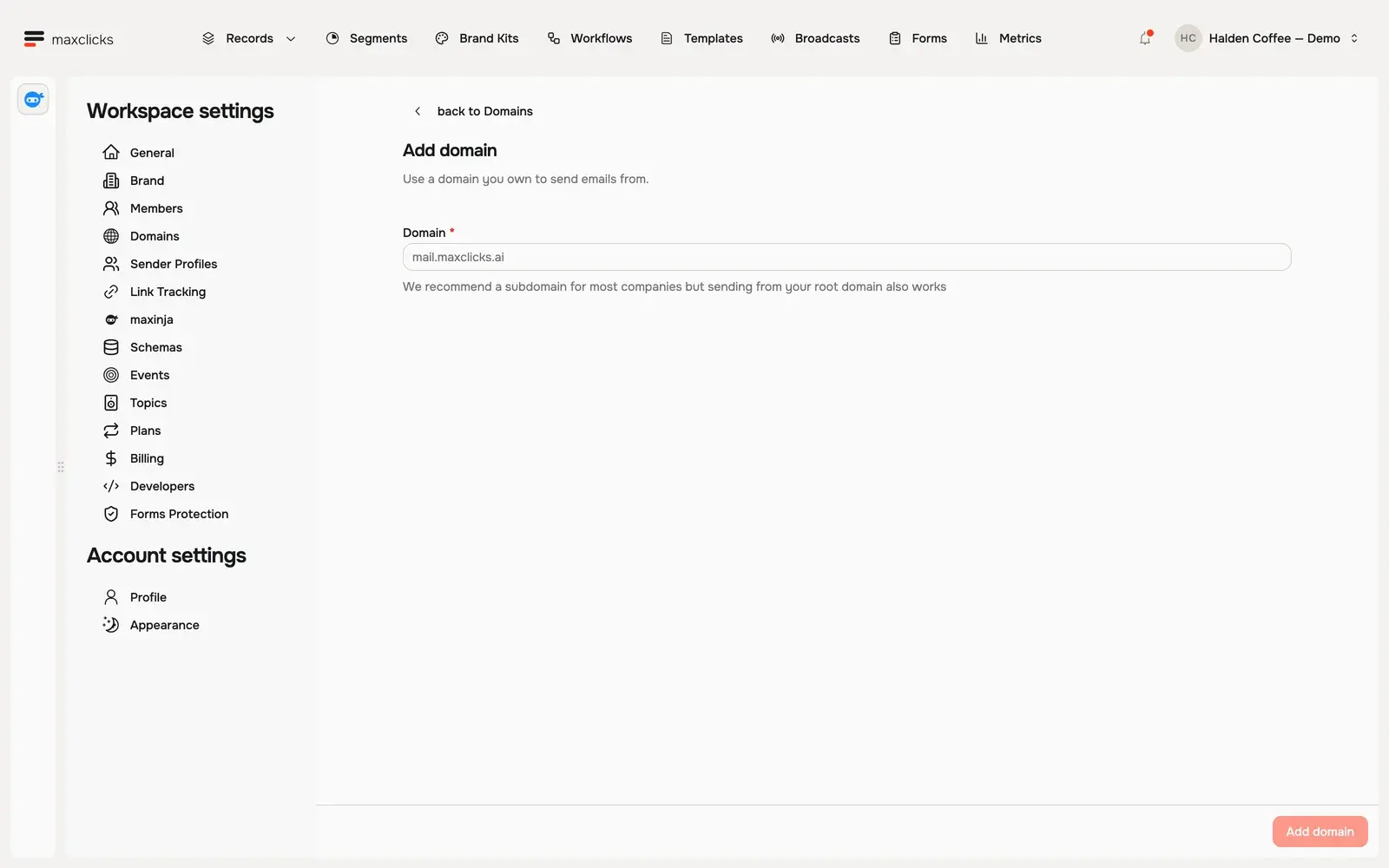
Walkthrough steps
Open Domains and choose Add domain. Inspect the form before submitting a domain. The existing .example domain status is local fixture data; this recording does not perform external DNS verification.
Root domain or subdomain
maxclicks suggests a subdomain, such as mail.example.com, and shows a warning if you enter your root domain instead. The reason is reputation: mail sent from a subdomain builds its own sending reputation, so a bad stretch does not follow your root domain into your customers' spam folders.
Sending from the root domain works and is not blocked. If you choose it, the warning stays and nothing else changes.
Publish the DNS records
Opening a domain shows the exact records to add at your DNS provider (the service where you manage your domain, such as Cloudflare, GoDaddy, or Route 53). Copy each record from maxclicks and add it there. The names and values are unique to your domain, so always copy them from the app rather than typing them by hand.
| Record | What it does |
|---|---|
| SPF | A TXT record on your return path subdomain that authorizes maxclicks to send mail for your domain, so receivers can confirm the source is allowed. |
| DKIM | Three CNAME records that add a cryptographic signature to every message so receivers can verify it was not altered in transit. |
| DMARC | A TXT record on _dmarc that tells inbox providers how to handle mail failing SPF or DKIM, and improves your domain reputation. |
| Return path | An MX record on the same subdomain, at priority 10, that routes bounce and complaint notifications back to maxclicks. |
DNS changes are not always instant. Providers can take anywhere from a few minutes to a few hours to publish new records, so do not worry if verification does not complete immediately.
Start verification and let the checks run
Once your records are live at your provider, tell maxclicks to begin checking.
- Start the verification check
Back on the domain in Domains, choose Start verification check. This tells maxclicks to begin looking for your records. The button is a one-time action: once verification has started, it stays disabled and shows that checking is in progress.
- Wait for the background check
A background job checks your records 16 times a day, so roughly every 90 minutes. When all of them resolve correctly, it flips the domain to verified on its own, and the status updates in real time without a refresh.
The per-record status column shows which records have landed. Use it to tell a slow DNS provider apart from a record you mistyped.
You do not have to sit through the 90 minutes. Opening the domain reads its status live from the mail provider and updates it on the spot, so reopening the domain after your DNS provider confirms the records is the fastest way to see the change. Leave the page and come back: the notification center in the top bar also surfaces domain status changes.
Keep your records in place
Verification is not permanent. The same background job that verifies a domain also re-checks it over time.
Recovering an un-verified domain is straightforward. Add the missing records back at your DNS provider exactly as maxclicks shows them, then wait for the next background check, which re-verifies the domain once the records resolve again. There is nothing to restart: Start verification check stays disabled after the first run, and opening the domain re-reads its status immediately.
Set your default domain
Your space tracks a default domain that pre-fills the sender in composers and other inputs. The first domain you add becomes the default automatically. Once you have at least one verified domain, your space always keeps a default set. If you have several domains, you can change which one is the default from Domains.
The first sender profile you create on the default domain becomes your default sender in the same way.
Sending rules that depend on verification
A verified domain is a hard requirement for real sends. Keep these rules in mind:
- Broadcasts and workflow emails only send from a verified domain. If the from-domain is not verified, the send is blocked.
- Test emails are no exception. They leave from the sender set on the email, so that sender's domain has to be verified too.
- If a domain is later un-verified, every send from it stops until you restore the records.
Once your domain is verified, you are ready to bring in your audience. A good next step is to create your first contact schema and then import your contacts from a CSV file.
Frequently asked questions
How long does verification take?
The DNS records themselves can take a few minutes to a few hours to publish, depending on your provider. After that, the background check runs 16 times a day, roughly every 90 minutes, and verifies the domain on the first successful run. To avoid the wait, open the domain once your provider reports the records as live: opening it reads the status from the mail provider immediately.
Can I send email before my domain is verified?
No. Every send leaves from one of your own domains, so a verified domain is required before anything goes out, test emails included. You can keep building broadcasts and templates while you wait, but nothing leaves the space until verification completes.
My domain was verified and now it is not. What happened?
The background check found that one or more of your DNS records is missing or changed, so it un-verified the domain. This almost always means the records were removed or edited at your DNS provider. Add them back exactly as maxclicks shows them, then open the domain to re-read its status. You do not restart verification: that control runs once and stays disabled afterward.
Does verifying a domain cost anything?
No. Verifying a domain is free. On the Free plan, verifying your very first domain is also what grants your space its one-time credit gift, so it is worth doing early.
Do I need a separate domain to receive replies?
No. The return path record you publish handles bounce and complaint routing on a subdomain of your sending domain. You do not need a second domain to verify and send.
Did this article answer your question?