Add and edit contacts
Learn how to add contacts by hand, edit and tag them, run bulk actions, and understand how maxclicks identifies each person.
On this page
A contact is the person you address: their name, email, preferences and personal details. Sarah's orders belong in separate Object records; related purchase history can inform her audience and email without creating another Sarah for every purchase.
Most contacts arrive through a CSV import, form or API. Use this guide to add one person, check their identity and preferences, and maintain the list. The contacts reference covers all matching and consent rules.
Where contacts live
Every contact schema has a records table. Open Records in the top bar and choose the schema you want, such as Customers. The table lists contacts in that schema, with search over identity text, notes and tags. Use a segment for business rules over custom fields. From here you create contacts, open a contact's detail, and run actions across a selection.
Add a contact by hand
Adding a single contact is the quickest way to capture someone you just spoke to or to test your setup.
- Open the records table
Open Records in the top bar and select the contact schema you want to add to.
- Create a new contact
Choose to add a contact. A form opens with your schema's fields: the base attributes like email, first name, and last name, plus any custom attributes you defined.
- Fill in what you know
Enter the details you have. An email is enough for the built-in contact fields, but your schema may require additional attributes. Supply a stable User ID if your product already identifies this person that way.
- Set their communication topics
If the person has agreed to hear from you, pick at least one entry under Communication topics. That is what subscribes the contact to email. Leave it empty and the contact is saved with no email subscription.
- Save the contact
Save to create the contact. It appears in the table immediately, marked with the source manual so you know it was added by hand.
How maxclicks identifies a contact
Import and upsert matching happens within one schema, using the first applicable identity below. Consistent identifiers let repeated input update one record; they do not automatically combine separate profiles for the same human.
- If the contact carries an id (the maxclicks contact ID), match that exact contact. An id that matches nothing is reported, never created.
- Otherwise, if it has a userId, match the contact with the same userId.
- Otherwise, if it has an email, match a contact that has that email and no userId.
- Otherwise, if it has a phone, match a contact that has that phone and no userId and no email.
- Otherwise, create a new contact.
For an email-only list, keep the email consistent. When your product uses userId, send that stable ID consistently. A new user ID alongside an existing email can describe a separate profile from an email-only record; review the migration instead of assuming the profiles merge.
Edit a contact
Open any contact from the records table to see its detail: its fields, its tags, and its activity. Editing works the same as adding.
- Open the contact
Click a contact in the records table to open its detail page. You see its attributes, its tags and notes, and an activity view of what has happened with it.
- Edit its fields
Change any editable field and save. Your custom attributes and the editable base fields, like name, email, and phone, are all updated in place.
Some fields you cannot edit. maxclicks manages them for you and ignores any attempt to set them from an import or the API:
- source records how the contact entered (import, api, form, manual, workflow, or integration) and is set once when the contact is created.
- createdAt and updatedAt track timing and are maintained automatically.
- id is assigned by maxclicks when the contact is created and never changes.
Full name is not one of them. maxclicks builds it from the first and last name when you leave it out, but you can also set it yourself, on the contact's detail page or from an import. Typing into full name clears the separate first and last name, so use it for people whose name does not split cleanly.
Editing a custom attribute to empty clears its value but keeps the field on the contact. There is no way to remove a custom attribute's value entirely: you clear it or you change it.
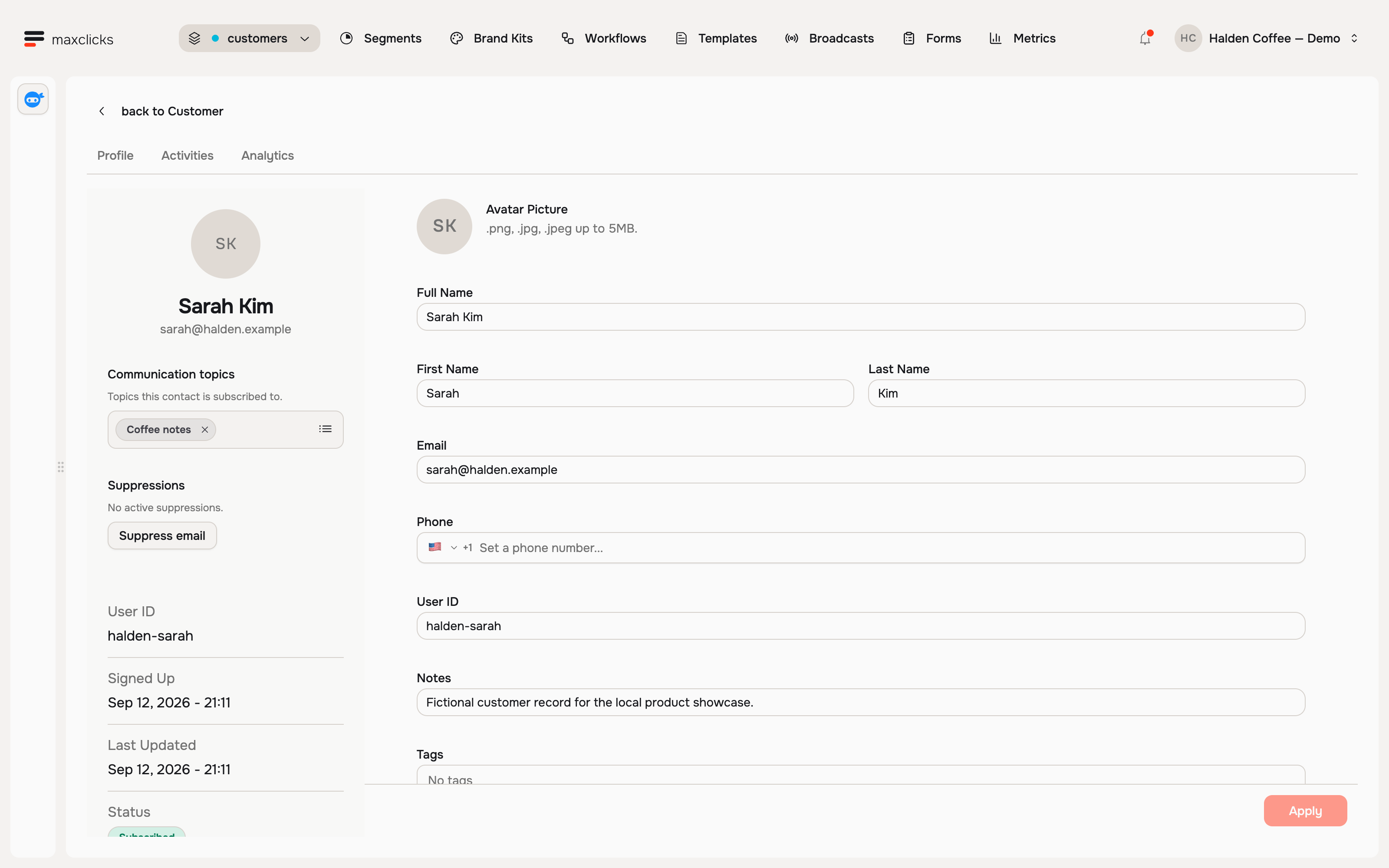
A recipient's topic opt-out creates an address-and-topic block in the workspace as well as updating preferences. Another profile with the same address cannot bypass it for marketing email assigned to that topic. It does not turn off every topic. Channel consent, topic membership and applicable suppressions are separate checks; inspect communication preferences before expecting a profile edit to change send eligibility.
Tags and notes
Two fields group contacts without adding structure to the schema.
Tags are plain string labels, like vip or beta, that you attach to contacts for grouping and filtering. Tags are normalized, so VIP and vip are the same tag. When you type a new tag, maxclicks creates a tag definition for it automatically, with a display label and a color, so it looks consistent everywhere it appears. Tags are a fast, informal way to mark contacts you later target in a segment.
Notes are free-form text on the contact for anything that does not fit a field: context from a call, a reminder, a caveat. They are useful for human context and the records table's text search; use structured attributes for precise audience rules.
Bulk actions
When you need to act on many contacts at once, select them in the records table and apply a bulk action. Review the selected contacts and the intended change before applying it.
| Action | What it does |
|---|---|
| Add tags | Apply tags across the whole selection at once. |
| Subscribe or unsubscribe | Change email consent for the selection. Every change is recorded in the audit trail. |
| Add or remove topics | Add the selection to, or remove it from, a communication topic. |
| Delete | Remove the selected contacts. This deletes the records permanently. |
Those are the only bulk actions. To take a tag off a contact, or to suppress an address, open that contact and change it there.
Consent and suppressions
Subscription and topic changes are consent changes, so maxclicks records each one in the contact's audit trail: the event, its state, who made it, and the context. Use that history to inspect the recorded preference change. The audit trail is available through the Records API; keeping an audit alone does not establish permission to send.
Suppression is different from unsubscribing. Unsubscribing changes a contact's consent; suppressing blocks sending to an email address regardless of any contact. It is also a single-contact action: you suppress and unsuppress an address from that contact's detail page, not from a selection. To understand how the two interact and when maxclicks suppresses automatically, read how unsubscribes and preferences work and manage suppressions.
Where contacts come from
Every contact carries a source that tells you how it entered your space. You cannot set it: maxclicks assigns it and it never changes.
| Source | How the contact entered |
|---|---|
| manual | Added by hand from the records table. |
| import | Created by a CSV import. |
| form | Submitted through one of your forms. |
| api | Created through the Public API. |
| workflow | Created by a workflow action. |
| integration | Synced in by a connected integration. |
Contacts and objects both count toward the plan's record allowance. See How billing works.
A contact's source explains your data and feeds segments, for example targeting everyone who came in through a form. To bring in an existing list, see import your contacts from a CSV file. To group contacts into filtered audiences, see create a segment.
Did this article answer your question?