Add attributes to a schema
Learn how to add stored and evaluated attributes to a schema, choose a type, set defaults, and use auto-fill and scheduled values.
On this page
Attributes give your campaign the facts it needs. Store a subscription's renewal date, look up the subscription from its customer, or publish a recurring count of customer activity. Each is an attribute, but its source determines when its value changes.
Before you start, review how schemas fit together. If you have not read it yet, see understand schemas, contacts, objects, and events.
Stored versus evaluated attributes
Choose the value source that matches your decision:
- Stored: your product, import or team supplies a fact, such as an Account's plan.
- On demand: generated logic finds a related record or calculates an answer when requested, such as the Account matching a Customer's account ID.
- Scheduled: a background calculation publishes a count, sum or latest value from one event source on a schedule.
The relationship lets Maya's email use her account's plan. A scheduled activity count tells you about a measured time window. Both need selection in the email's Data panel, and they have different freshness rules. See the attribute comparison.
Add a stored attribute
You add attributes in the schema's attribute editor.
- Open the schema
Go to Settings, then Schemas in the left-hand sidebar, and select the schema you want to extend. For event schemas, open Settings, then Events instead.
- Add an attribute
Choose to add an attribute. Choose Stored value under How is the value set?. Give it a clear Name, such as Plan tier, and a Key, such as
planTier. The key is what data must match on import and through the API, so keep it short and consistent. - Choose a type
Open the Value type dropdown and pick the entry that matches the data, such as Text, Number, or Date. The type determines what values maxclicks will accept and how the field behaves. Configure any type options, like a dropdown's choices or a number's minimum and maximum.
- Save the attribute
Choose When a record is created without a value: Leave it empty, Use a default value, Require it, or AI autofill. Save the field. Existing records are not backfilled by the new creation policy.
Stored attribute types
maxclicks offers a type for most kinds of business data. The Value type dropdown lists them as a flat set of choices, so pick the most specific entry that fits: it gives you better validation, better inputs, and better results when maxinja works with your data.
| Type | Use it for | Options |
|---|---|---|
| Text | Names, labels, short descriptions | Plain text, a dropdown or radio of fixed options, or multi-line text and code |
| Email addresses | Validated as an address | |
| Phone | Phone numbers | Validated and normalized |
| URL | Links, files, images | A web link, a file, or an image with an optional preview |
| Number | Counts, scores, quantities | Whole numbers or decimals, with an optional minimum and maximum, or a percentage |
| Decimal | Money and precise amounts | An optional currency |
| Checkbox | Flags and toggles | Shown as a checkbox or a dropdown |
| Timestamp, Date, Time | Points in time | A full date and time, a date only, or a time only |
| Multi-select | Several short values in one field | A list of text values, optionally limited to fixed choices |
| Address, Geolocation, JSON | Structured values | A postal address, a geolocation, or free-form data that follows a JSON schema you define |
A few notes on choosing:
- Text is the workhorse. Give it a fixed set of options and it becomes a controlled dropdown or radio group, so your data stays clean. Switch it to multi-line for long text or code.
- Email, Phone, and URL are their own entries in the dropdown, not settings inside Text. Each validates the format for you.
- Use Decimal rather than Number for money, so amounts keep their precision.
- Address, Geolocation, and JSON cover values that are not a single scalar. Use the first two for those common shapes, or define your own JSON schema with JSON.
There are no nested-object attribute types. When you need to store a structured value, use JSON with a schema you define rather than looking for an "object" field type.
Choose Evaluated attribute under How is the value set? for a relationship, on-demand answer or scheduled event measure. Review the generated timing before saving.
Required fields and null values
Every attribute is either required or optional. An optional attribute can be empty (null) on a record, which is the normal state until a value arrives.
A required attribute must have a value when a record is created. If a record comes in without one, and there is no auto-fill to supply it, the record fails to save. Mark an attribute required only when a record genuinely cannot exist without it, so you do not block legitimate data at the door.
When adding a required field to populated contact or object records, choose an explicit Fill existing empty records value or make the field optional. A default for future creations does not fill that historical gap. Recorded event occurrences cannot be backfilled with a newly required field; keep it optional or create a new event type.
Setting a custom attribute to empty later clears its value but keeps the field on the record. There is no way to remove a custom attribute's value entirely from a single record; you clear it or you change it.
Auto-fill: default and AI-generated values
Writable stored fields offer creation-time missing-value policies, including Use a default value and AI autofill. These supply a value when a new record omits the field. Auto-fill runs only at creation, and only for values that were not provided, using the record's other fields as context. It comes in two forms.
- A fixed default puts the same value on every new record that arrives empty, such as a default plan tier of free or a status of active.
- An AI-generated value asks maxinja to fill the field when a record enters, optionally guided by a prompt you write. For example, an AI auto-fill on a Region field could infer the region from the contact's other details.
Evaluated attributes: computed relationships and formulas
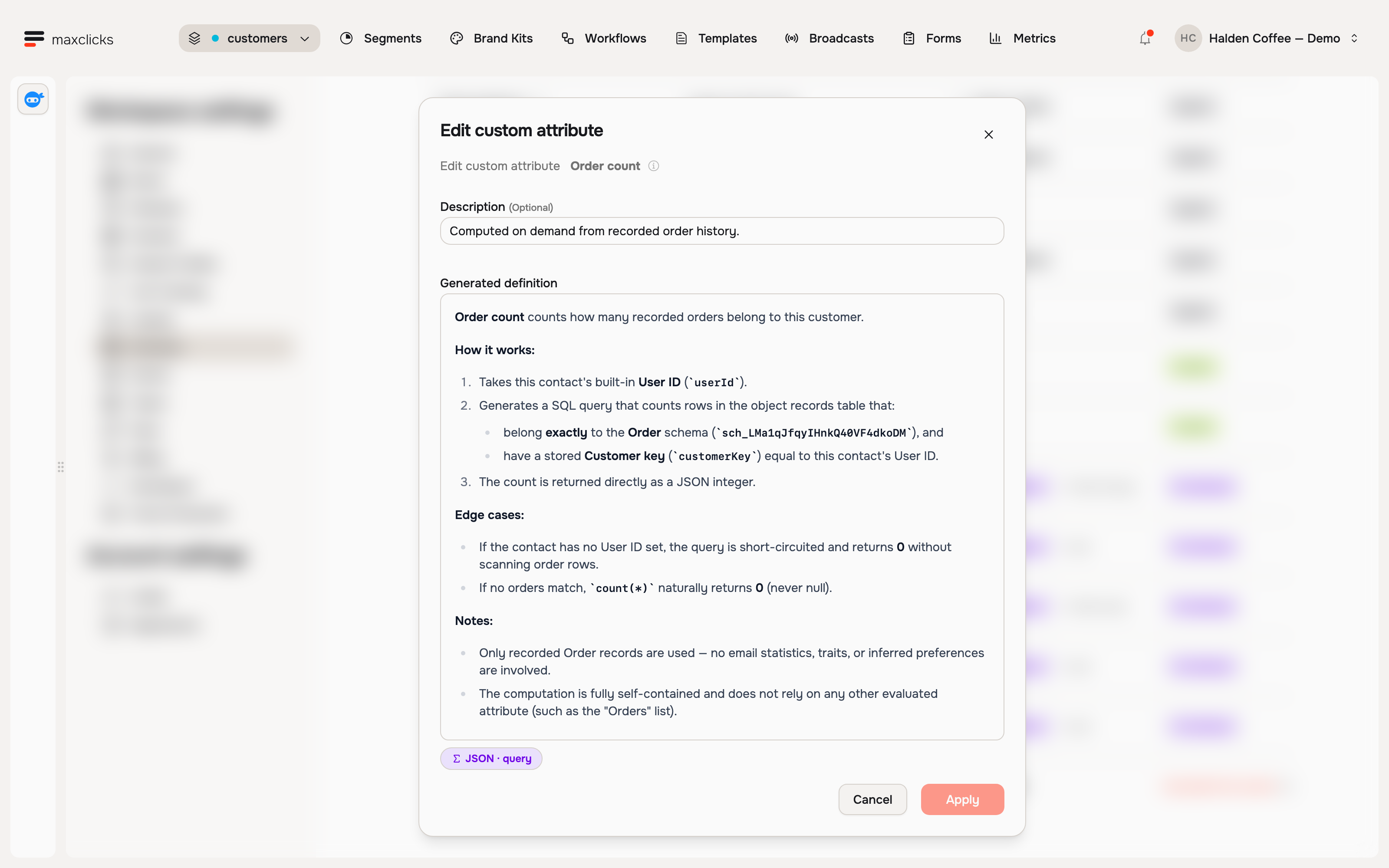
Instead of storing a value, an evaluated attribute computes one on demand from logic that maxinja generates for you. One attribute kind covers all of it: entity relationships, computed properties, formulas, aggregations, and cross-record queries.
Examples of what an evaluated attribute can express:
- The company a contact works for (a relationship to an object schema).
- A contact's total spend over the last year (an aggregation over event history).
- The top three products rated highly by people at a contact's company (a cross-record query).
An evaluated attribute returns one of two things: one or more records from another schema, or a computed value that follows a JSON schema you declare. The needed source records and match keys must exist. Review the generated target schema and one/many cardinality, then test a known match and a no-match case.
How an evaluated attribute is defined
You do not write the logic by hand. You describe what you want, and maxinja generates it. Each evaluated attribute stores three parts:
- Requirements: your description of what to compute, in plain language. You refine it with follow-up prompts rather than editing code.
- A human-readable description: a clear summary of what the attribute does, which is what you and your teammates see.
- The generated logic: the actual computation, which maxclicks keeps as a server-side secret. It is never shown to any client and can never be written or edited by hand, only regenerated through maxinja.
How evaluated values appear
An on-demand evaluated attribute queries the available database records when something consumes it. Its result reflects those records at that time; it cannot account for data that has not arrived yet. Because it is not stored, it does not show up on a plain record read: it appears only when the thing consuming the record explicitly asks for it, for example a workflow step or an email template that needs the company a contact works for.
Two limits are worth knowing. An evaluated attribute that returns many records is capped at 1000 records, with the excess truncated and reported. And nothing computes an evaluated attribute you did not ask for: a broadcast calculates one for each recipient only when the email content's Data panel has that attribute ticked, so an unselected field is absent from the email data. The content's fallback decides what renders.
Because maxclicks tracks which schemas, attributes, and segments an evaluated attribute depends on, you cannot delete something an evaluated attribute still uses. maxclicks blocks the deletion with an "entity in use" message until you remove the dependency.
Inspect an AI autofill policy
Choose AI autofill under the missing-value controls to review its prompt, credit usage and failure behavior before applying it. This example opens the controls without changing the saved fixed default.
Publish a recurring event measure
Open the destination contact or object schema's Attributes tab, choose Create attribute, then Evaluated attribute under How is the value set?. Describe the event source, count/sum/latest measure, time window and refresh cadence. For example: count ready PurchaseCompleted events explicitly linked to each Customer in the last 30 days, refreshed hourly.
Review the generated definition. Business event sources can preview up to five profiles; a preview does not publish the result. After creation, inspect Published value, Data through and the update status. Refresh now queues a calculation.
A complete publication with no matching history is empty, not zero. No complete publication, or an expired enabled publication, blocks a new decision that requests it. An older result can remain visible for inspection; paused definitions can use their retained publication. Imports cannot set the value, and a broadcast revision or workflow root run can retain an earlier selected publication. See scheduled evaluated attributes for supported windows, source links and operating limits.
Change a populated field
Choose a conversion that matches the business meaning of the change:
| Existing records | What changes |
|---|---|
| Keep existing values | Preserve values. Review blocks any value that does not fit the new rules. |
| Fill empty values | Supply a constant only where the field is missing or empty. |
| Map specific values | Replace exact old values and choose how unmatched values are handled. |
| Convert to the new format | Normalize values into the proposed type; block values that cannot convert. |
| Replace all values | Replace this field on every record, including populated records. |
For example, changing planTier from free text to a controlled option list can expose Pro, pro and professional as separate values. Map each old value deliberately, then inspect known customers and the audiences that read the field. A successful conversion does not prove the new category means what your campaign intends.
Saving runs checks before applying structural changes. Changes that require your decision appear in the schema's Changes tab. Read invalid-value examples, affected rules and any producer checks. A reviewed proposal is not yet an applied definition. Some changes pause the space during the final switch; refused input needs a retry after reopening. After an uncertain application response, use Check Apply status and inspect the existing change before submitting another. Follow Setup changes for the complete review, pause and recovery sequence.
Put your attributes to work
Once your schema has the fields you need, you fill them with data. Bring in an existing list with import your contacts from a CSV file, remembering that CSV headers must match your attribute keys exactly. Add or edit records by hand with add and edit contacts. Then use your attributes to build filtered audiences in create a segment.
Frequently asked questions
Does changing a default update existing contacts?
No. Creation defaults apply to new records that omit the field. Choose an explicit backfill or conversion for existing records, and inspect its review before application.
Does opening a scheduled field calculate it again?
No. Reading it loads the selected publication. Refresh now queues background work; check Data through after publication completes.
Why does a field appear in the app but fail in an email?
Select its expansion in the email's Data panel. Then inspect its definition and publication status. An unselected field is absent; a selected unavailable or expired scheduled result fails rather than becoming a valid empty history.
Did this article answer your question?