Understand workflow runs and fix failures
Trace a customer journey through its inputs, decisions and email activity, then distinguish temporary waits from terminal failures.
On this page
When a customer receives an unexpected reminder or no reminder, open the workflow's Runs tab. Trace the person from the triggering event through the lookup, delay, decision and email. The recorded path helps separate a wrong audience rule, a valid empty result, a temporary wait and a failed action.
For a first-project reminder, a customer with an existing project should finish before the email. Start by finding that person's run and checking the project count and branch it actually used.
What a run is
A run is one execution of a published workflow version. It carries named data from step to step and retains its version when you publish later changes. A fan-out creates child runs, each with its own subsequent execution and cost.
Ordinary record values are read as needed. Query outputs, recorded decisions and captured loop inputs describe earlier work rather than continuously updating. Published Scheduled values can be pinned for the root run and its children. When evidence differs from today's record, check when and how it was read.
Runs becomes available after the first publication. A run can be executing, waiting on a saved Delay, parked by Pause, or waiting for credits or capacity. In progress alone does not identify which of those it is.
Read the run history
- Open the customer's run
Open the workflow and choose Runs beside Composer. Select the customer's run and check its trigger time, published version and status.
- Trace the decision
Select the lookup or decision step. Compare Received with Produced and follow the highlighted output path. If a step is red, read its recorded reason before arranging another execution.
- Inspect the email separately
For Send Email, open View email details and inspect its activity. Provider acceptance, delivery, opens and clicks are different events.
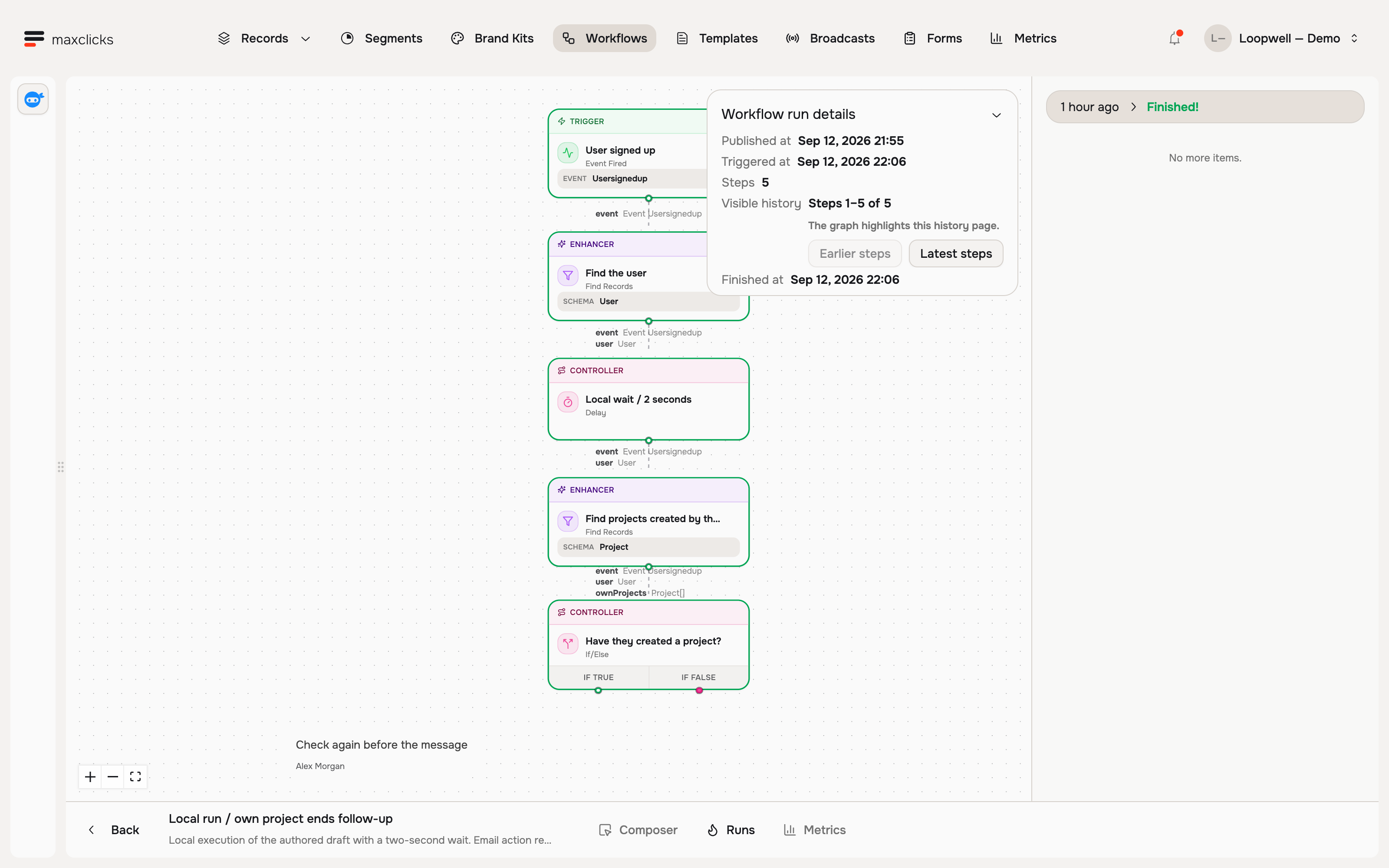
The example is a completed run from a test copy with a shortened delay and no email action. It proves which decision that run took; it does not show a production message being delivered.
Child runs retain their parent relationship. Use that to distinguish expected fan-out from several distinct events enrolling the same customer.
Read the visible history range
History is paginated. Visible history identifies the loaded step range, and the graph highlights that page. Use Earlier steps to load preceding evidence and Latest steps to return to the newest page. An earlier path outside that range does not mean those steps never ran.
Steps is the recorded execution count. Emails in visible history counts email records in the loaded page. Once the complete history is visible, the label becomes Emails created. Neither label proves delivery; open the email's activity for that evidence.
Branched from links a child to its parent and the splitting step. Follow that link when one signup appears to have several runs. A deliberate split and several independently received signup events need different corrections.
Read the current status
| Status | Meaning |
|---|---|
| In progress | The run has not finished. It may be executing, delayed, paused or waiting for credits or capacity. |
| Finished! | The run reached its end without a failed step. Check email activity and the business outcome separately. |
| Failed. | A terminal step failure ended this run. Read its recorded reason. |
| Needs attention | The run has a recovery reason and does not continue automatically. Inspect accepted effects before repeating work. |
An accepted Query or AI result describes work at that step. A threshold trigger retains the previous and current values that caused enrollment. Compare the recorded time and generation with today's record before deciding the result was wrong. Source-data deletion can remove private run values and history; it does not authorize reconstructing or replaying an old action.
Why a run fails
A terminal failure ends the run. Temporary waits and safe infrastructure retries are different: do not create another journey merely because the current one has not finished.
| What you find | What to do |
|---|---|
| Zero matches at a fan-out | A valid empty selection ends that path without an error. Check the filter and the customer identity. |
| Waiting for credits | Restore available credits and let waiting work continue. A top-up does not repair a run already marked Failed. |
| Waiting for capacity | Allow queued work to proceed. Concurrency pressure parks execution rather than failing it immediately. |
| Paused workflow or saved Delay | Check the workflow status and deadline. Resuming preserves the saved deadline and the original version. |
| Invalid input or AI result shape | Inspect the supplied values and configured shape. Fix and publish for future runs. |
| HTTP error or unknown email acceptance | Inspect the external system or email activity before repeating the action; it may already have happened. |
| Sender, subscription or allowance failure | Correct the specific sending prerequisite. Consent failure is separate from a credit wait. |
Completed step effects and charges are recorded so safe recovery can reuse them. Infrastructure retries are bounded. An uncertain external action is not blindly repeated. There is no general replay-from-this-step control; reconcile any completed writes or sends before deliberately triggering another run.
Inspect a run that needs attention
The details show Needs attention, Stopped at and the recovery reason. The run does not automatically continue. A credit top-up or a new publication does not establish that repeating the held action is safe.
Check the destination that accepted the work: email activity for a send, the receiving service for an HTTP request, or model/tool evidence for AI. A timeout can occur after an external action completed. Record what happened before arranging replacement work.
If the original journey should end, use Terminate run. A replacement is new execution and can repeat earlier sends, writes and paid generation. Scope it to what remains rather than assuming the old run did nothing.
Compiled rules and runtime AI
If/Else, Switch and Delay can evaluate saved compiled logic or call a model at runtime. AI on every run in the step's configuration identifies the runtime mode and requires Model and Thinking. The dedicated AI step always calls a model.
For a fixed condition such as “newer completed order count is greater than zero,” compile it. For interpretation such as classifying a free-text goal, provide the relevant facts and permitted answers to AI. A generated answer must match its result shape, but that alone does not establish a useful recommendation.
If the branch surprised you, inspect its actual input, published condition and selected output first. Different current data can explain different decisions even for compiled logic. For runtime AI, review the instruction and model result as well. See step logic and AI.
Fan-out, splits, and the run cap
Find Records, Create or Update Records and Delete Records offer Process each record separately:
- Checked: each result continues as a child run. No results means that path ends.
- Unchecked: one run continues with the entire list, including an empty list.
- For Each always creates a child run for each item.
A space's active-execution cap is 1,000 plus 20 per object record. Work beyond that capacity waits. Saved sleeping delays do not hold an active slot for their entire wait. The cap limits simultaneous execution, not total campaign cost.
List-size limits are separate: Find Records can pass at most 1,000 records as one list, and For Each accepts at most 1,000 items. Use Find Records with separate processing for larger record selections. Delete Records is limited to 1,000 matched records per execution. Those limits can cause a failure that waiting for capacity will not fix.
What to check when a run fails
Work backward from the recorded outcome:
- Confirm the version and final step. A draft correction does not change an older run.
- Compare the customer identity and lookup inputs with a known record. A teammate's activity may be the wrong evidence for an individual reminder.
- Check status and reason: failed, delayed, paused, credit wait or capacity wait need different responses.
- Check side effects before repeating anything. An HTTP timeout can follow an action completed by the other system; uncertain email acceptance needs email activity review.
- Correct the draft and validate a controlled test. Before publishing, inspect old waiting runs: publication resumes a paused workflow, and those runs keep their old version.
To contain ongoing execution, Pause the workflow. It prevents new runs and parks further steps. Stop new runs prevents new enrollment while existing runs continue. Neither control undoes completed work or recalls in-flight requests.
Terminate an individual run
You need Write permission. Ending a parent also ends its child runs and pending continuations; other roots and the workflow's new enrollment remain separate.
- Check the selected lineage
In Runs, select the run and review its version, current step and Branched from information. Inspect any email or external effects already accepted.
- End the run
Click Terminate run under Run control and confirm. Reopen the details to check the resulting history and state.
Termination records an explicit reason at the current step, which can count as a failed run. Accepted effects and incurred charges remain. There is no skip or rewind control.
If the run or a child is committing a step, wait for that work to settle and retry termination. A large lineage may require terminating child runs first. A rejected termination is not a successful stop; read the error and check the current state.
Costs and observability
Standard internal workflow steps have no fixed operation fee. AI steps, runtime AI controllers and Adaptyle email personalization add model usage; email also uses the sending allowance. Child runs execute their own later steps, so review filter scope before increasing volume.
Runs provides individual execution evidence. Metrics summarizes the published version you select, helping locate steps with failures or losses. Billing → Usage shows spending by category and period, but does not break it down per workflow, run or step. See workflow billing.
For the marketing outcome, measure the customer action separately. A completed reminder workflow does not establish a completed purchase or prove that the reminder caused it. Use email performance alongside your order or product data.
Frequently asked questions
Does publishing a fix repair an existing run?
No. Existing runs retain their original version. Publication resumes a paused workflow, so inspect and terminate old journeys that must not continue before releasing the correction.
Why does an in-progress run show no new activity?
It may be on a saved Delay, paused, or waiting for credits or capacity. Check its step, deadline and workflow controls. Needs attention is separate and does not continue automatically.
Does termination undo the email or HTTP request?
No. It stops the selected lineage and pending continuations. Accepted effects remain. Inspect the email or receiving service before arranging another action.
Why are earlier steps missing from the highlighted path?
Check Visible history and load Earlier steps. The graph highlights the loaded history page. Private values and history can also be removed following source-data deletion.
Did this article answer your question?