Loading the guide…
Invite members and set permissions
Learn how to add teammates to your space, choose the right role for each, and remove members.
On this page
A space is a shared workspace. You invite your teammates into it and decide what each of them can do. A member's role controls who can build and send, and who can manage the space itself. This article explains the three roles, how to add and remove members, and what a member costs on the Premium plan.
How roles work
Every member of a space carries one role. maxclicks has three: Admin, Non-paid Admin, and Member. You pick a role when you invite someone, and you can change it later. There are no separate permissions to toggle on and off.
| Role | What it grants |
|---|---|
| Admin | Full access. Everything a Member can do, plus manage the space name and slug, add and remove members and set their roles, run every billing operation, and connect or disconnect integrations. |
| Non-paid Admin | Admin without editing. View the space, manage members, billing, and integrations, but no creating, editing, or sending. |
| Member | Can edit. Create, edit, and delete records, schemas, segments, forms, broadcasts, templates, and workflows, run maxinja and the other AI generation features, suppress and unsuppress contacts, and send and schedule email. No access to space, member, or billing settings. |
A few things follow from this model:
- Non-paid Admin is free on every plan. A member is only a paid seat once their role can edit, which means Admin or Member.
- Admin already includes editing. There is nothing extra to add for an admin who also builds campaigns.
- A Non-paid Admin can only assign the Non-paid Admin and Member roles, and cannot change or remove a full Admin.
- You cannot change your own role or remove yourself from the Members page. Ask another admin to do it for you.
- A space always keeps at least one member with admin rights, so the last Admin or Non-paid Admin cannot be demoted or removed.
Non-paid Admin is more useful than it sounds. Someone in this role can open every broadcast, workflow, and segment, read your metrics, and review previews before a send goes out, without being able to change or send anything. That makes it the right role for a stakeholder who wants visibility, or for a finance contact who handles billing but never builds. Because it is free on every plan, you can add as many of these members as you like.
Member is the working level. A member creates and edits schemas, attributes, segments, contacts, objects, forms, broadcasts, templates, and workflows, runs maxinja and the other AI generation features, suppresses and unsuppresses contacts, and sends and schedules email. Almost everyone who builds in maxclicks is a Member.
Admin is the ownership level. On top of everything a Member can do, an admin manages the space name and slug, adds and removes members and sets their roles, runs every billing operation, and connects or disconnects integrations. Keep the admin group small and deliberate.
Choose the right role for your team
Roles map cleanly onto how people work. Use these as a starting point and adjust as people take on more.
| Role on your team | Suggested role | Why |
|---|---|---|
| Marketer or campaign builder | Member | Builds and sends broadcasts, workflows, and forms; needs to run maxinja. |
| Space owner or team lead | Admin | Builds campaigns and also manages members, billing, and integrations. |
| Finance or billing contact | Non-paid Admin | Handles billing and invoices without building, and costs nothing on Premium. |
| Stakeholder who only reviews | Non-paid Admin | Sees the space without being able to create, edit, or send; also free on Premium. |
| Agency or contractor | Member | Builds on your behalf; remove them when the engagement ends. |
Non-paid Admin is worth calling out. Your finance contact may need to view invoices, update the card, and manage the subscription, but never build a campaign. Non-paid Admin gives them exactly that, and on the Premium plan it costs nothing because it is not a paid seat.
Add a member
You add members by email from the space settings. Existing maxclicks users join the moment you add them. A person who does not have a maxclicks account yet receives an invitation link to sign in and join.
- Open the members page
Open Settings, then Members. You see the list of everyone in the space and their current role.
- Add the people by email
Click Invite team members in the upper-right. Enter one or more work email addresses in Send Invite to ..., separated by commas, spaces, or new lines. Use the same email each teammate signs in with so an existing account is matched instead of a fresh invitation being sent.
- Pick a role
Choose the role under Invite as: Admin, Non-paid Admin, or Member. You only see the roles you are allowed to assign. Click Send Invites.
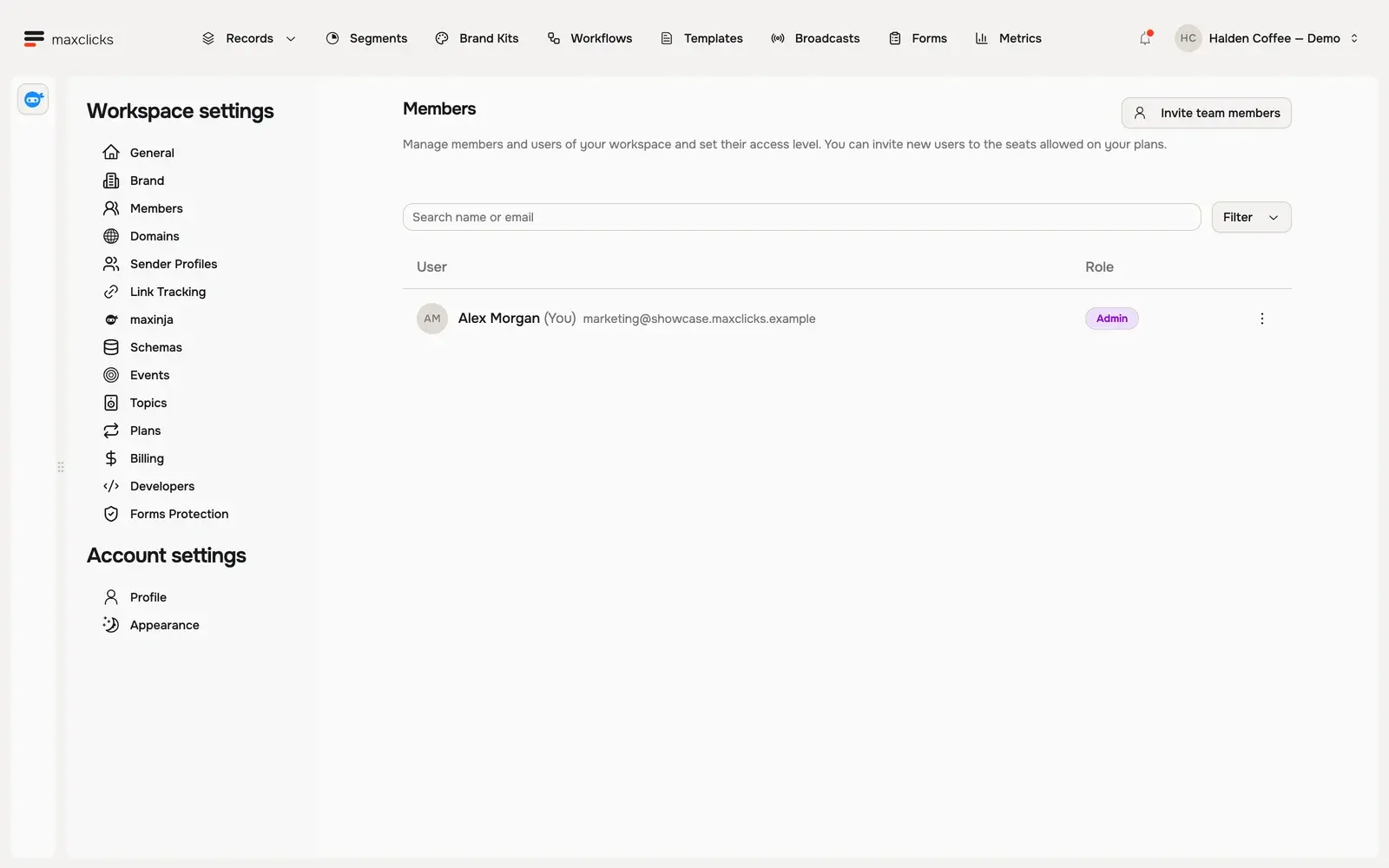
If the email belongs to an existing user, the space appears in their space menu right away and they show up in the list at once. If it does not, they get an invitation link by email and only appear on the Members page once they follow it and sign in.
Change a member's role
You can change a role at any time as responsibilities shift on your team.
- Find the member
On the Members page, locate the person in the list.
- Change their role
Open the actions menu at the end of the member's row and choose Make Admin, Make Non-paid Admin, or Make Member. The change takes effect immediately; there is no separate save. You only see the roles you are allowed to assign, so a Non-paid Admin cannot promote anyone to full Admin.
Moving someone to Non-paid Admin turns their seat into a free one. Moving them to Admin or Member turns it into a paid seat on the Premium plan. See the next section for how that affects your bill.
What a member costs on Premium
Membership itself is free. Billing only comes into play on the Premium plan, and only for members who can build and send.
On Premium, a seat is one member who can edit, which means an Admin or a Member. Each seat adds to your monthly subscription. Non-paid Admin members are free, which covers reviewers, stakeholders, or a billing admin at no extra cost.
Each paid seat also includes a monthly copilot credit allowance. maxclicks spends that member's seat credits first, before the shared space wallet, for the AI work they trigger. Seat credits do not roll over: they reset each month. Read more in understand plans and understand credits and auto-recharge.
Because Non-paid Admin is free, a common pattern is to keep a small group of Admin and Member people who build, plus a free billing contact and any number of free reviewers. That keeps your seat count, and your bill, tied to the people who actually build.
How API keys relate to roles
A role extends beyond the app. When a member creates an API key for the Public API, that key inherits the member's permissions in the space. A key owned by an Admin or a Member can create and change data; a key owned by a Non-paid Admin can only read.
This matters when a member's role changes. maxclicks checks the owner's current permissions on every API request, so a key always reflects its owner's role right now, not the role they had when they created it. Remove the member and their keys stop working on the very next call, because the key has no membership to draw permissions from. Even so, it is good practice to delete a departing member's keys explicitly rather than rely on that. And be deliberate about who creates keys in the first place: a key is as powerful as its owner, and there are no narrower, per-endpoint key scopes yet, so treat every key as full access at its owner's level. For the API itself, see the developer documentation.
Remove a member
When someone leaves your team, remove them so they lose access to the space.
- Open the member list
Open Settings, then Members, and find the person to remove.
- Remove them
Open the actions menu at the end of their row, choose Remove from space, and confirm. They lose access right away and the space no longer appears in their space menu.
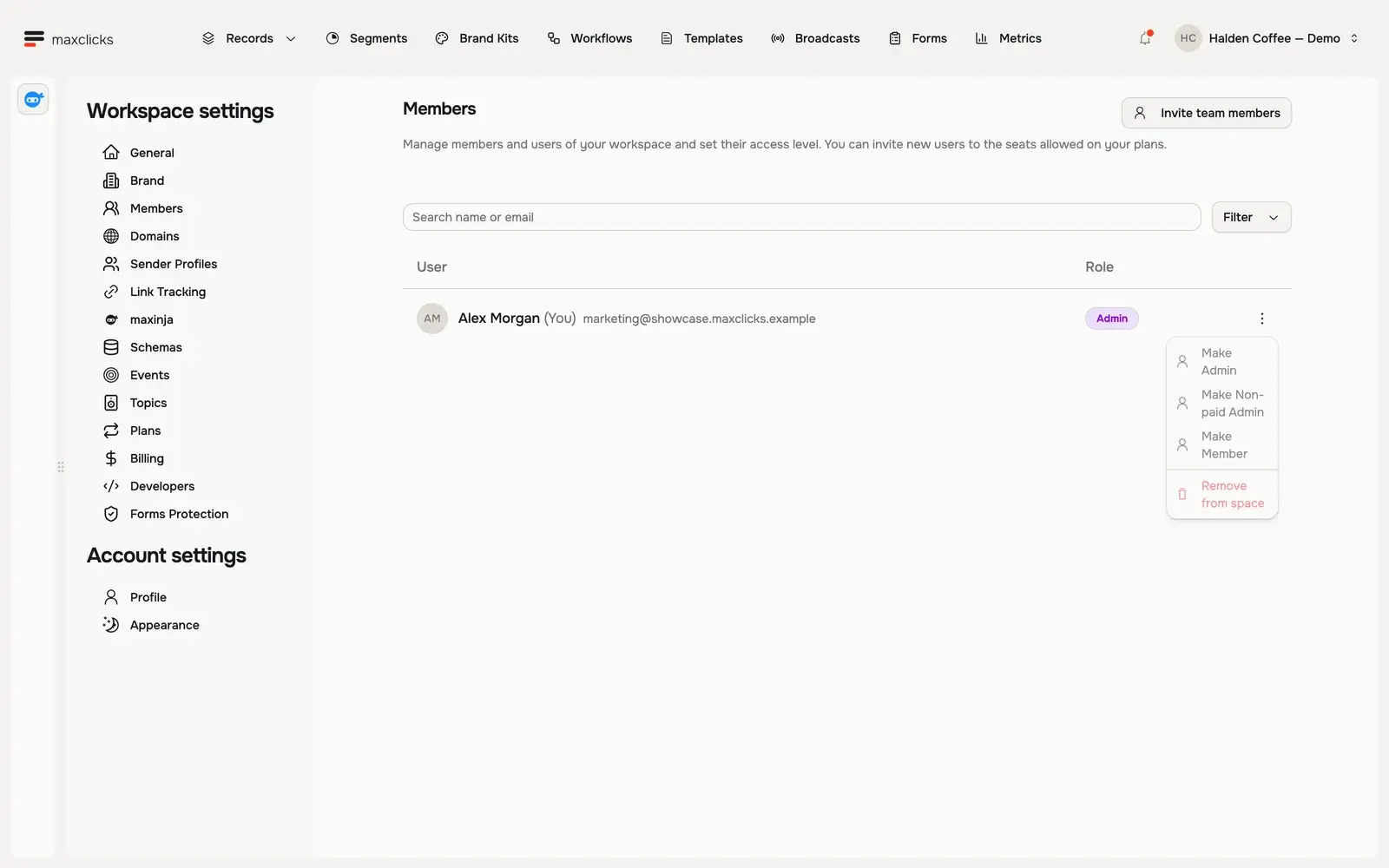
A user can belong to more than one space, so removing them here only affects this space. Their account and their access to any other spaces stay intact.
Related settings
Once your team is in place, an admin usually sets up a few workspace-wide defaults so everyone builds from the same starting point. Continue with set your space defaults and create and publish a brand kit.
Frequently asked questions
What is the difference between Admin and Member?
A Member can build and send: create and edit records, segments, broadcasts, workflows, and forms, run maxinja, and send email. An Admin can do all of that and also manage the space itself: its name and slug, its members, its billing, and its integrations. Non-paid Admin sits between them, with the space and billing access of an admin but none of the editing.
Do Non-paid Admin members cost anything on Premium?
No. On Premium, only roles that can edit are paid seats, which means Admin and Member. A Non-paid Admin is free, which covers reviewers and a billing contact without adding to your subscription.
What happens when I invite someone who has never used maxclicks?
They receive an invitation link by email, valid for 14 days. When they follow it and sign in, an account is created and they join your space with the role you chose. Until they accept, they do not appear on the Members page at all, so send a fresh invitation if the link expires.
Can I have more than one admin?
Yes, and it is a good idea. A space keeps at least one member with admin rights at all times, so a second admin means you can still manage members and billing if one is away. You also cannot change your own role or remove yourself, so a second admin is what hands the space over later.
Does removing a member delete their work?
No. Removing a member revokes their access, but the broadcasts, workflows, segments, and other entities they created stay in the space. On Premium, removing an Admin or a Member also removes their paid seat from your next bill.
Did this article answer your question?