Loading the guide…
Create a form
Learn how to build a contact-capture form: bind it to a contact schema, map fields, and choose an inline or popup display with triggers and a teaser.
On this page
A form is a contact-capture page you build in maxclicks and place on your website. It collects people into one of your contact schemas: a newsletter signup, a lead magnet, a waitlist. This article covers building the form itself: binding it to a schema, mapping its fields, and choosing how it appears, whether inline in the page or as a popup with show triggers and a teaser. Consent and confirmation are covered separately in set up consent and double opt-in and publish and share a form.
What a form is
A form is bound to a single contact schema, such as Subscriber or Lead, and every submission becomes a contact in that schema. Forms only work with contact schemas, because their whole purpose is to capture people you can message. Object and event schemas are not eligible.
You build forms in the Forms area, which holds the builder, the publish and share controls, and the form's analytics. A form must be published before it renders or accepts a single submission, so building is only the first half of the job.
Create and bind the form
Start from the Forms area and bind the new form to the contact schema it should collect into.
- Open the Forms area and create a form
Open Forms and click Create form. There is no dialog to fill in: maxclicks creates a draft, names it Untitled Form 1 (or the next free number), and opens it in the builder straight away.
- Rename the form
Click the name at the top of the form page and type a name you will recognize later, such as Newsletter signup. The description underneath is optional and is for your team, not for visitors.
- Bind it to a contact schema
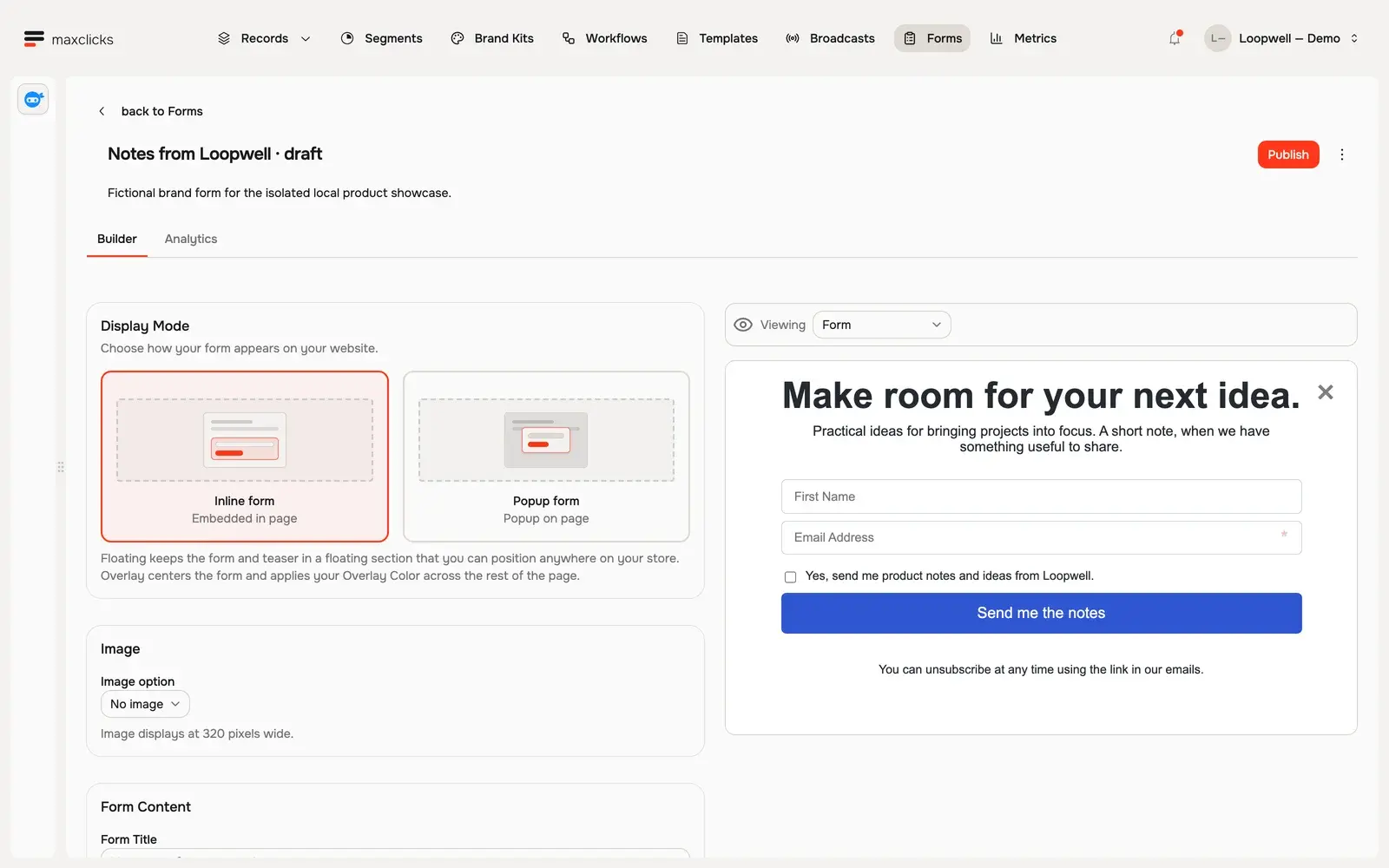
On the Builder tab, find the Form Content card and set Contact schema to the schema submissions land in, such as Subscriber. This binding fixes which attributes you can offer as fields, so pick the schema whose people this form is for. Changing it later drops any fields that came from the old schema's custom attributes, so it is worth setting first.
Map fields to attributes
A form's fields map to the bound schema's attributes. Each field you add collects one attribute and writes the submitted value onto the new contact.
- The email field is mandatory and required. Every form collects an email, and it cannot be made optional, because an email address is what makes a contact reachable.
- Mark other fields required or optional. For each additional field you add, decide whether a visitor must fill it in to submit.
- Only real, collectable attributes are offered. Evaluated (computed) attributes cannot be collected, since they are calculated rather than entered, and platform-controlled keys are off limits too.
- Full name excludes first and last name. The fullName attribute is mutually exclusive with the firstName and lastName pair, so you collect a single full-name field or the separate parts, not both.
To offer a field the schema does not have yet, add the attribute to the schema first. See add attributes to a schema and, for how schemas and attributes fit together, understand schemas, contacts, objects, and events.
A typical newsletter form is deliberately short: a required email field and an optional firstName field, which greets subscribers by name without adding friction to the signup. A lead form for a sales team might add a required company field and an optional phone. The rule of thumb is to ask only for what you will actually use, because every extra required field costs you completions. Fields you can enrich later, through an integration or an evaluated attribute, do not belong on the form.
Each submission becomes a contact whose source is recorded as a form, which is how you tell which of your contacts arrived through a form versus an import, the API, or a workflow. That source is set automatically and is not something the visitor can influence.
Choose a display mode
A form appears one of two ways on your site, and the mode changes which settings you configure.
Inline
An inline form renders in the flow of the page, wherever you place its embed. It is always visible, with no triggers or timing, which suits a signup block in a footer, a sidebar, or a dedicated landing page.
Popup
A popup form floats over the page and appears based on rules you set. It gives you more control over when a visitor sees it.
| Popup setting | What it controls |
|---|---|
| Position | Where the popup appears on the screen. |
| Show trigger | What makes it appear: after a delay, on exit intent, or after the visitor scrolls a set amount down the page. |
| Frequency | How often a visitor sees it: always, once, once per session, or once per day. |
| Overlay | Whether a dimming overlay sits behind the popup. |
| Closable | Whether the visitor can dismiss it. |
A popup can also have a teaser, a small prompt that invites the visitor to open the form. You choose where the teaser sits and when it shows: on first visit, after the popup is closed, in both cases, or never. A teaser softens a popup, letting a visitor open the form on their own terms rather than having it thrown in front of them.
Both inline and popup forms can carry an optional banner image to brand the form. You place the banner (for example above the fields, to one side, or as a background) and set its opacity, so it complements the form rather than competing with the fields for attention.
- Pick inline or popup
In the builder, choose inline for an always-visible block or popup for a floating form with timing rules.
- Set the appearance rules
For a popup, set its position, show trigger, frequency, overlay, and whether it is closable. Add a teaser if you want a prompt that opens it. Optionally add a banner image and set its position and opacity.
- Preview the result
Use the builder's preview to see the form as a visitor will, then adjust until it looks and behaves the way you want.
Next steps
With fields mapped and a display chosen, two things remain before the form does its job. First, decide how it handles consent and whether it uses double opt-in, in set up consent and double opt-in. Then publish it and put it on your site, in publish and share a form. A form stays a draft, invisible and inert, until you publish.
Frequently asked questions
Can a form collect into an object or event schema?
No. Forms capture contacts, so they bind to contact schemas only. Object and event schemas cannot back a form.
Can I make the email field optional?
No. Every form includes an email field and it is always required, because the email address is what makes the captured person a reachable contact.
Why can't I add a field for a computed attribute?
Evaluated attributes are calculated by maxclicks, not entered by a visitor, so they cannot be collected on a form. Only stored, user-entered attributes can be mapped to fields. Platform-controlled keys are also unavailable.
Can visitors set their own tags or subscription topics through the form?
No. Tags, topics, and subscriptions are derived server-side from the form's configuration and the consent decision, never taken from the submitted values. You configure them on the form itself.
What is the difference between inline and popup forms?
An inline form renders in the page wherever you embed it and is always visible. A popup floats over the page and appears based on triggers you set, such as a delay, exit intent, or scroll depth, with frequency and teaser controls. Choose inline for a fixed signup block and popup for timed prompts.
Did this article answer your question?