Create your account and sign in
Learn how to create your maxclicks account, sign in with an email code, a magic link, or Google, and start onboarding.
On this page
Your maxclicks account is your personal identity on the platform. It is tied to your email address and gives you access to every space you create or are invited to. This guide covers how to sign in for the first time and what happens right after.
How signing in works
maxclicks has no separate sign-up and sign-in. You always start from the same place. When you confirm an email address maxclicks has not seen before, it creates your account and signs you in. Confirming an existing account signs you back in. Either way, you use the same screen.
Because of this, there is nothing to register in advance. Your first successful sign-in is what creates your account.
maxclicks is built for teams and businesses, so it accepts work email addresses only. Personal addresses from providers such as Gmail, Yahoo, Outlook, iCloud, and Proton are rejected with "Please use your work email address", on email sign-in and on Google sign-in alike. Use the address at your own company domain.
Sign in with an email code or a magic link
maxclicks confirms your email address with a temporary login link or verification code.
- Enter your email address
Open the maxclicks sign-in page and type your email in the Email address field, then choose Continue with email. Your account is created after you complete verification.
- Choose how to confirm
Open the temporary login link in the email, or select Enter code manually on the Check your email screen. Enter the code from the email and select Verify code.
- Finish signing in
Once your code or link is accepted, maxclicks signs you in and takes you to onboarding if this is a new account, or to your spaces if you already have one.
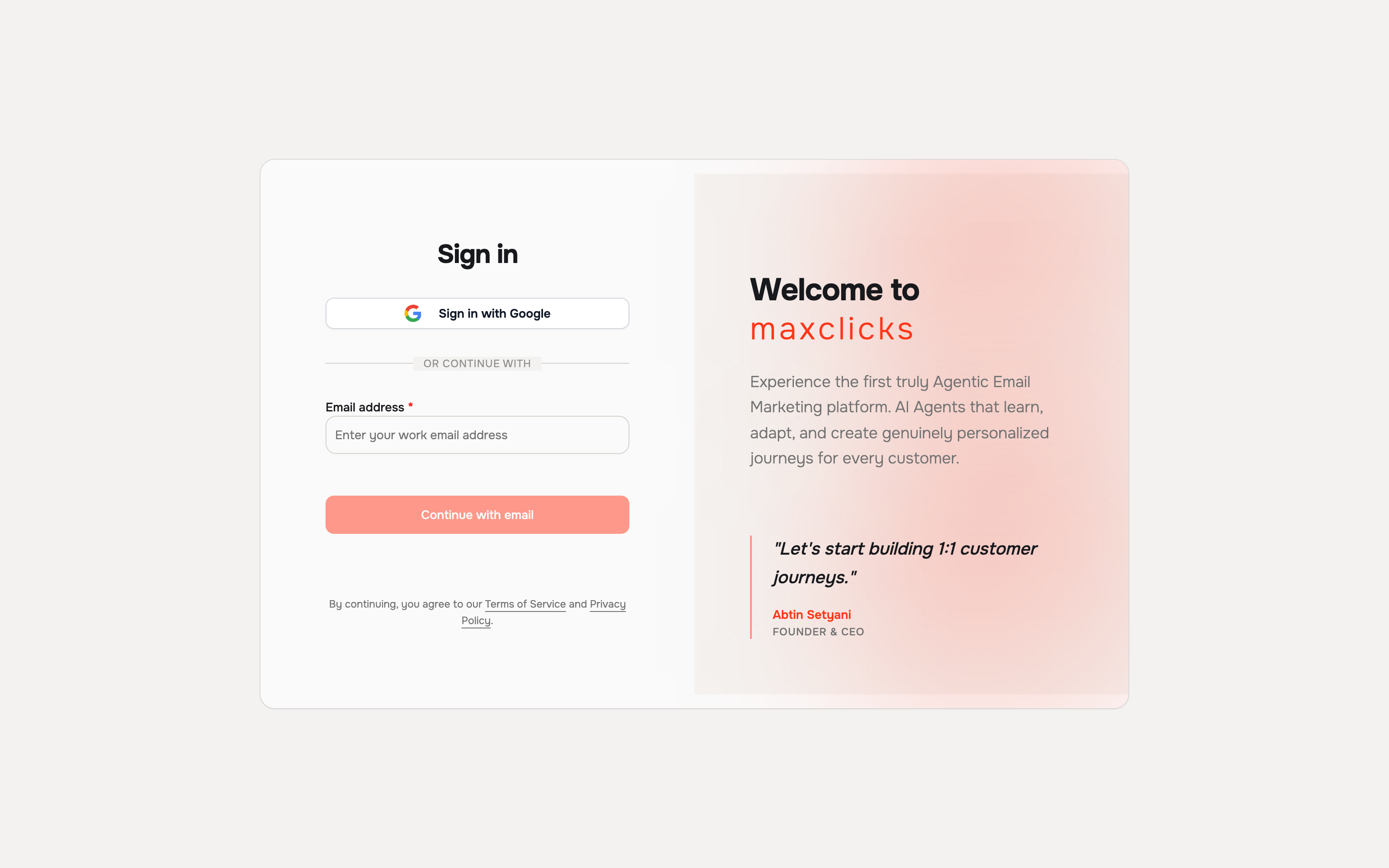
The code and login link expire. If nothing arrives, check the address shown on Check your email and your spam folder. Use Back to login to correct the address or request another email. An invalid or expired code needs a new sign-in attempt.
Sign in with Google
If you would rather not handle a code, you can sign in with Google instead. Choose Sign in with Google, pick the account you want, and maxclicks signs you in. As with email, a first-time Google sign-in creates your account automatically. Google One Tap may also offer to sign you in directly when you land on the page. Pick your work account: a personal Google address is rejected here too.
What happens after your first sign-in
The first time you sign in, maxclicks walks you through a short onboarding flow before you reach the main app.
- Complete your profile
Add your name so teammates can recognize you. This is a quick, one-time step.
- Set up your first space
Choose Set it up myself and complete Workspace, Brand and Contacts. You become the admin of any space you create.
For a full walkthrough of that wizard, read set up your first space. After setup, the natural next steps are to verify your sending domain and create your first contact schema.
Use the same work address on another device to reach your account. Switch between workspaces from the space menu after signing in.
Did this article answer your question?