Create and publish a brand kit
Learn what brand kits contain, how to publish and select one for an email, and how changes affect templates using it.
On this page
Give a product launch, customer welcome and repeat-purchase email the same recognizable identity. A brand kit brings together reusable colors, fonts, images, footer content and writing guidance. Publish it, select it for a draft, then inspect an actual email to check how those choices work together.
Changing the default selects a starting kit for new content. Editing a kit changes its reusable values. Rewriting an existing paragraph or changing a hard-coded color is a separate draft edit.
Brand versus brand kit
Your space has one brand, created during setup. It holds your business name, website, footer address, logo and icon. An Admin edits these details from Settings → Brand. A Non-paid Admin can open that settings page but cannot save identity changes because the save requires Write permission. Members can edit kits from Brand kits.
There is one brand per space, and it cannot be deleted or duplicated. Plan around a single brand identity for each workspace. If you run two distinct brands, use two spaces.
maxclicks uses the saved business address in the email footer. Enter and review those details before sending marketing email.
A brand kit is different. It is a reusable collection of design assets attached to your brand, and a brand can have more than one kit. You might keep one kit for your main look and another for a seasonal campaign. Kits live on the Brand kits page, separate from the core brand details in settings.
Think of it this way: the brand answers "who are we" (name, address, logo), and a brand kit answers "how should this email look and sound" (colors, fonts, voice, assets).
What a brand kit contains
A new kit includes a default palette and style pack. Replace their choices with your own, then add the assets, footer and writing guidance your campaign needs.
| Part | What it holds |
|---|---|
| Socials | Links to your accounts across supported platforms, rendered in the email footer. |
| Values | Named brand values with descriptions that guide how maxinja writes. |
| Tones | Named voice and tone descriptions that guide how maxinja writes. |
| Asset collections | Groups of images you upload, each annotated with an AI-generated title and description. |
| Color palettes | Seven colors: canvas background, background, heading, text, button background, button text, and link. |
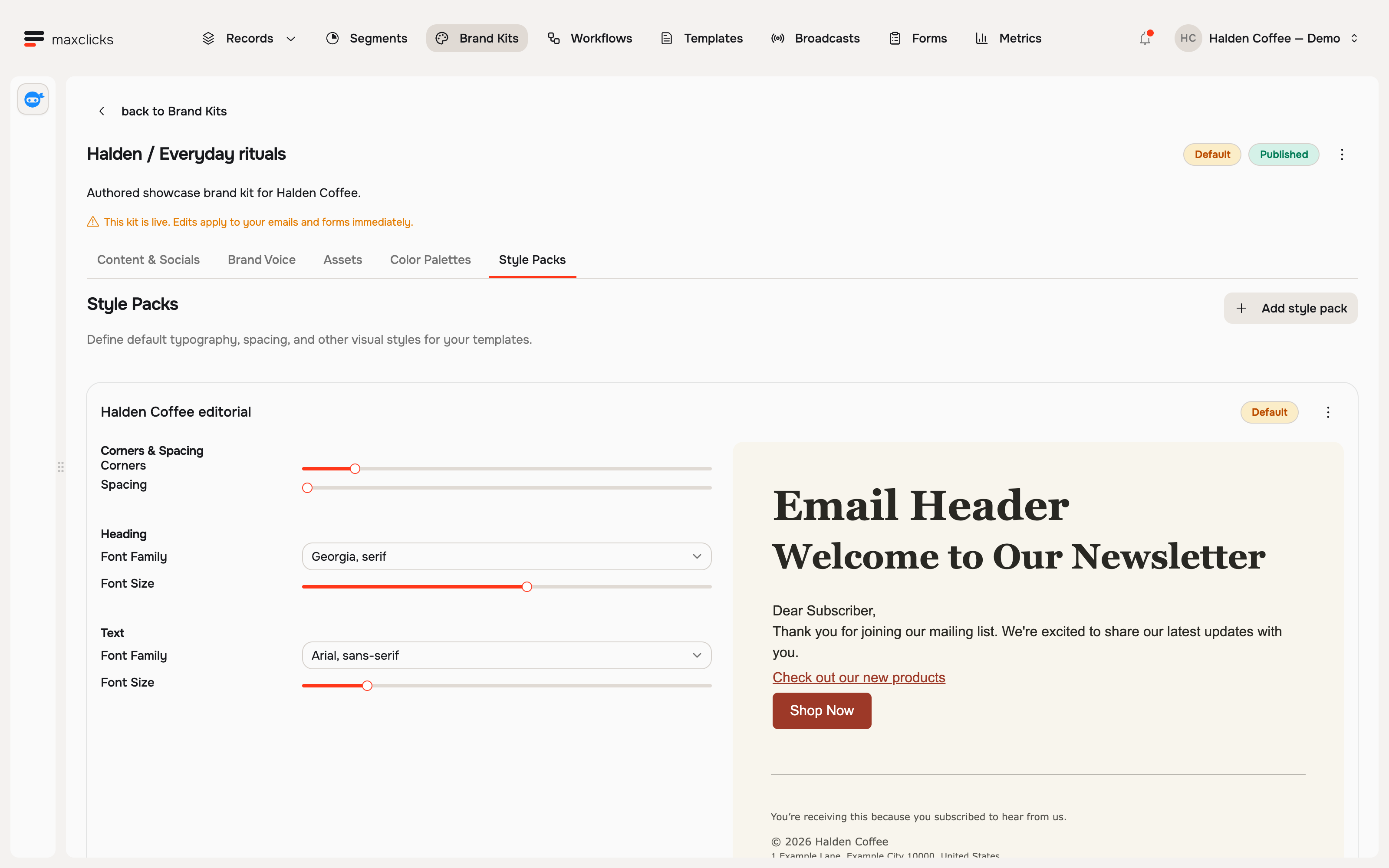
| Style packs | Corner radius, spacing, and heading and body font families and sizes. |
| Footer and rules | Footer and disclaimer text, copyright line, and writing rules such as words to avoid or always include. |
Two of these parts feed the AI directly. Your values and tones shape how maxinja writes copy, and your writing rules tell it what to avoid and what to always include. The rest, colors, fonts, socials, and assets, shape how the email looks and what it links to.
The seven-color palette names each color's purpose, from canvas background to button text. The style pack supplies corner radius, spacing, and heading and body typography. Designs can reference those values; choosing a kit does not replace colors or styles already hard-coded in a template.
Give the voice concrete direction: “Explain the customer benefit in the first sentence” is easier to inspect than “customer-focused.” Values, tones and rules guide generated writing; they are not a blocked-word list or a guarantee that every claim is correct. Compare samples with complete and missing customer context.
Use more than one kit
A brand can hold several kits, and that is useful when one look does not fit every message. You might keep a primary kit for everyday email and a second kit with a different palette and imagery for a seasonal promotion or a sub-audience.
Only one kit is the default at a time. The default is what new email content starts from; other published kits are still available to pick when you compose. Keeping your everyday look as the default, and switching to an alternate kit only on the specific emails that need it, is usually the cleanest approach.
Build a brand kit
You assemble a kit part by part on the Brand kits page. Nothing here needs to be finished in one sitting; you can return and refine it.
Create the kit manually and add the design choices you have approved. The setup screen does not offer website extraction. Assets → Crawl URLs imports selected images into a collection; it is a separate action from creating a complete kit or extracting brand voice.
- Open the brand kits page
Open Brand kits from the main navigation. Create a new kit or open an existing one to edit its detail.
- Set colors and fonts
Fill in the seven-color palette and choose a style pack. Check the brand preview, then inspect a draft email using those choices.
- Add socials and assets
Add links for the social platforms you use; they render in your email footer. Upload the images you want on hand into an asset collection. maxclicks writes a title and description for each image you upload, and maxinja reads both when it picks an image for an email.
- Describe your voice
Open Brand Voice → Enter manually. Add values, tones and concrete writing rules. The separate Crawl URLs voice-import dialog is unfinished; use manual entry here. This is distinct from website extraction during onboarding.
Publish a brand kit
A new kit is a draft until you publish it. An unpublished kit is unavailable for email content and maxinja to use. Check the saved palette, style pack, footer and voice before publishing.
- Review the kit
Open the kit detail and confirm the palette, style pack, socials, and voice are complete enough to use.
- Publish it
Click Publish on the kit detail page and confirm. The kit becomes available to emails and forms. Later saved kit edits are live without another publication, so review their effect on content that reads the kit again.
- Confirm the default
The first kit you publish automatically becomes your brand's default, so new email starts from it right away. If you have more than one published kit, set the one you want as the default kit for your brand. New templates start from the default kit.
You do not have to finish a kit before you start using it. Publish it once the essentials are in place, then keep refining.
A published kit is live, but saved kit edits do not rewrite sent emails, existing authored prose or an already frozen broadcast revision. Broadcast preparation captures the campaign's branding for consistent rendering and sending. Inspect the campaign's revision and state before assuming a kit change will affect a scheduled send. Use a second kit when trying a different look.
Check a kit by opening a template or broadcast that uses it and inspecting the preview with representative customer data. Review the colors, fonts, footer, and generated writing. The preview is a sample; generated wording can differ when sending renders the email again.
How a brand kit feeds your email
When you compose an email, maxclicks attaches a branding selection to it: your brand, a specific kit, and a chosen asset collection, color palette, and style pack from that kit. This selection travels with the email content.
maxinja uses the selected kit when authoring. During an Adaptyle render, the email's resolved branding provides context for its instructions. Liquid can insert a palette value or footer field directly; it does not call a model or rewrite existing sentences. Keep required wording as authored copy outside AI regions.
maxclicks adds the configured footer, disclaimer, address and social links. Marketing email also includes subscription controls so contacts can manage their preferences. Free-plan emails carry a small “powered by maxclicks” badge. Inspect the complete preview and an inbox test, including the footer, before sending.
Because the branding selection lives on the content, changing your default kit does not rewrite emails you have already built; each email keeps the kit it was composed with. To move an existing template to a different kit, open it and pick the kit there.
To check a change, select the intended kit, palette, style pack and assets in a draft and generate a fresh preview. A Liquid reference such as branding.colorPalette.linkColor uses the resolved branding; a literal hex color stays as written. Ask maxinja to update authored content where needed. See brand kit behavior for live values, frozen campaigns and deletion.
To see branding in action, continue with your first send in set up your first space and set the workspace-wide defaults in set your space defaults.
Frequently asked questions
Does publishing a kit rewrite existing emails?
Publishing makes the kit available for selection. Saved edits affect values read from that kit again; hard-coded colors and authored paragraphs remain explicit content. Sent emails and frozen broadcast revisions keep their existing content.
Does changing the default move every template to the new kit?
No. The default supplies a starting choice for new content. Open an existing email and select the intended kit, palette, style pack and assets to change its selection.
Can I extract the whole kit or voice from a website?
The setup screen does not offer complete-kit website extraction. Assets → Crawl URLs imports selected images. The voice card’s URL/text action does not import voice; enter values, tones and rules manually.
Did this article answer your question?