Loading the guide…
Send a test email
Learn how to send yourself a rendered test email from the composer to check your work in a real inbox.
On this page
A test send delivers the exact email content you are editing to any address you type in, which puts the finished result in a real inbox before you send it for real. The composer's preview shows the rendered content in the browser; a test send shows how it lands in an inbox.
What a test send is
A test send takes the content in the email composer and runs it through the full send pipeline: Liquid interpolation, the Adaptyle personalization pass when your content contains prompts, and the injected footer. It then delivers the result to a single address you choose. Because it uses the same rendering as a live send, the inbox preview is faithful to what your contacts would receive.
Test sends live in the shared email composer. You reach the composer whenever you edit the content of a broadcast, a stored template, or a workflow send-email step. The composer is the same in all three places, so the test send control works the same way everywhere.
A test send is a real send. It leaves through your own verified domain and your chosen sender, it creates a real email record you can find later in your email list and metrics, and it counts against your monthly email quota. It is always transactional, because there is no contact and no unsubscribe link behind it.
Before you can send a test
You need a verified sending domain and a sender on it. If you have not set one up yet, follow verify your sending domain first. DNS records can take a while to propagate, so do this early.
The Send test control stays disabled until everything it needs is in place. Hover it and it tells you exactly what is missing: no domain added yet, a domain still being verified, a sender that no longer exists, or an incomplete from address.
Send a test email
- Open the email composer
Open a broadcast or a template and edit its email content. The composer opens with your content on one side and a live preview on the other. If you have not built anything to send yet, send your first broadcast walks through creating one.
- Pick the sender
Set the From field to a sender on your verified domain. A test send uses the same sender a live send would, so this also confirms the address your contacts will see.
- Give it sample data
If your content uses Liquid variables or personalization prompts, fill in the sample data so those values have something to resolve against. maxinja can generate sample data for you. Without it, personalized fields render empty.
- Send the test
Use Send test in the composer, enter the recipient email address, and confirm. Use an inbox you control, since the test goes to whatever address you type, not to your audience. If that address is suppressed in your space, for example after a hard bounce, maxclicks refuses the send.
- Check the inbox
Open the message in your inbox. Review the subject, preview text, body, images, links, and the footer. If something looks off, edit the content and send another test.
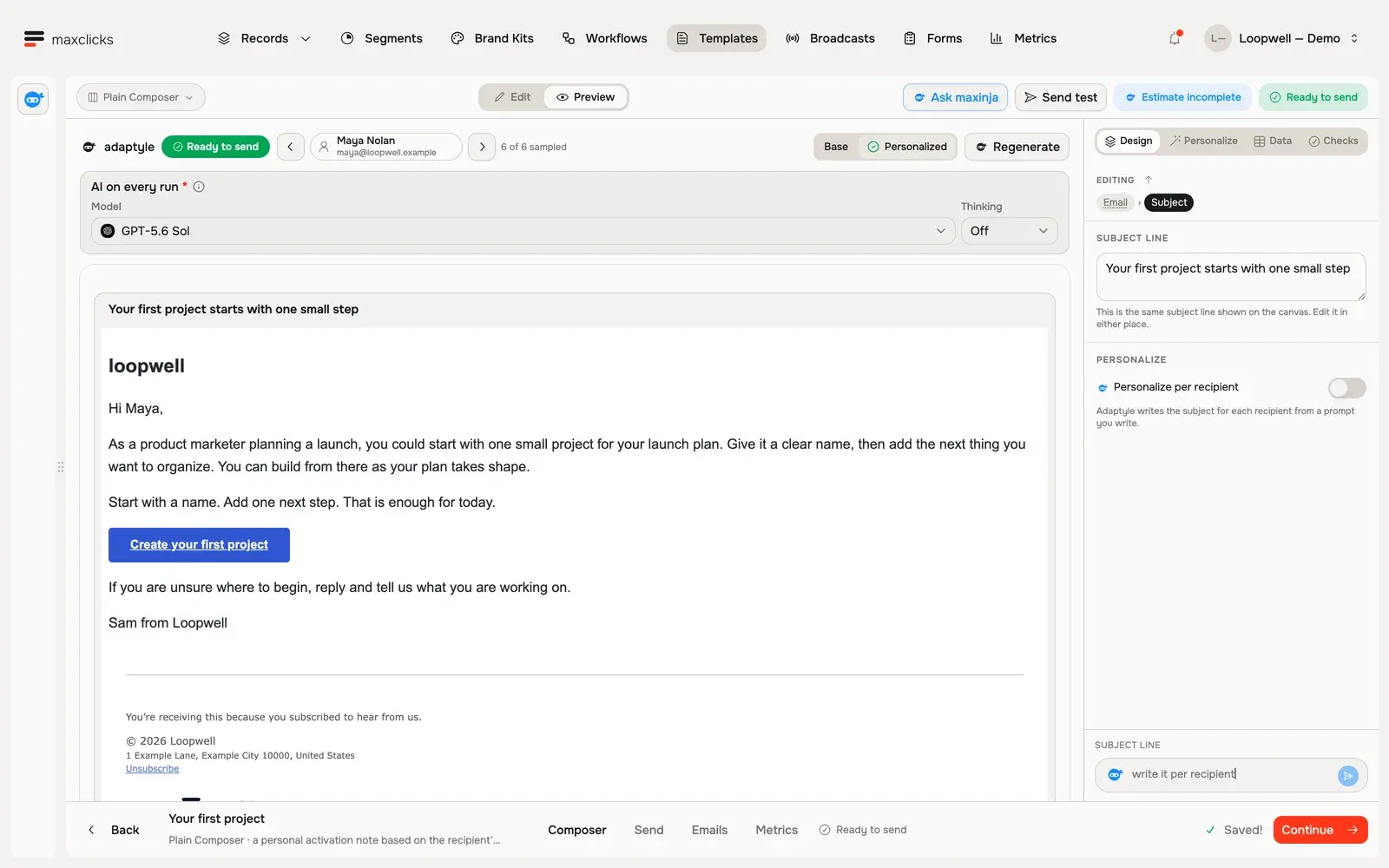
Walkthrough steps
With Maya selected, request a real personalized preview and wait for it to finish. Read the generated next-step advice using her product marketing role and launch use case. The template retains its button, sign-off and footer. No email is sent; separate generations can vary.
How a test send differs from a real send
A test send is a preview delivered to one address you type, so you send it to yourself or a teammate rather than to your contacts. Everything else about it matches a live send.
| Test send | Live send | |
|---|---|---|
| Needs a verified domain | Yes | Yes |
| Sends from | Your verified domain | Your verified domain |
| Recipient | One address you type | Your resolved audience |
| Transactional or marketing | Always transactional | Set by the content |
| Counts toward email quota | Yes | Yes |
| Triggers your workflows and webhooks | No | Yes |
Because a test is always transactional, it does not carry an unsubscribe link and it is not held back by a communication topic. It also does not start your own email-event workflows or webhooks, so testing content cannot set off your automations.
Treat a test send as proof that the content renders correctly. When the content looks right, move on to a real send: a broadcast to a filtered audience, or a template sent per recipient through the API.
Frequently asked questions
Do I need to verify my domain before I can test?
Yes. A test send goes out through your own verified domain and sender, the same as a live send, so verify your domain first. The Send test control stays disabled until you have a verified domain and a complete sender, and it names what is missing when you hover it.
Does a test send use my email quota?
Yes. Every test counts as one email against your monthly allowance, the same as a live send. On the Free plan that allowance is 100 emails per month, so avoid sending large numbers of tests.
Will a test send show up in my email list and metrics?
Yes. A test creates a real email record, so it appears alongside your other emails and its opens and clicks are counted. It does not trigger your own email-event workflows or webhooks.
Can I send a test to someone else's address?
You can send a test to any address you type, but use an inbox you or a teammate controls. A test send is for checking that the content renders, not for reaching contacts, so keep it to yourself and your team while you finalize the email.
Why do my personalized fields look empty in the test?
The test rendered against missing sample data. Fill in the sample data in the composer so Liquid variables and personalization prompts have values to resolve against, then send another test.
Did this article answer your question?