Send your first broadcast
Learn the full path to sending a broadcast, from choosing an audience to scheduling the send.
On this page
Send a product announcement to a group you can explain and review. This walkthrough uses a new coffee roast for recent customers; substitute your own offer and customer data. You will finish with a checked campaign and a deliberate choice to send now, schedule or keep it as a draft.
Before you start
Have a verified sending domain, a sender profile and customer records in a contact schema. For this example, connect purchase data or use a saved segment you can verify. A published brand kit supplies your logo, style and footer.
You need Write permission. The announcement is Marketing, so recipients need email subscription and any selected topic. Check credits, email allowance and the estimate before committing a live send; topping up credits does not itself increase a plan’s included email allowance.
Create the broadcast
Open Broadcasts → New broadcast. Choose the customer schema and audience. Select Next, choose Dynamic Composer and Marketing, then Next again. Name the draft “New roast: recent customers” in its header.
Choose your audience
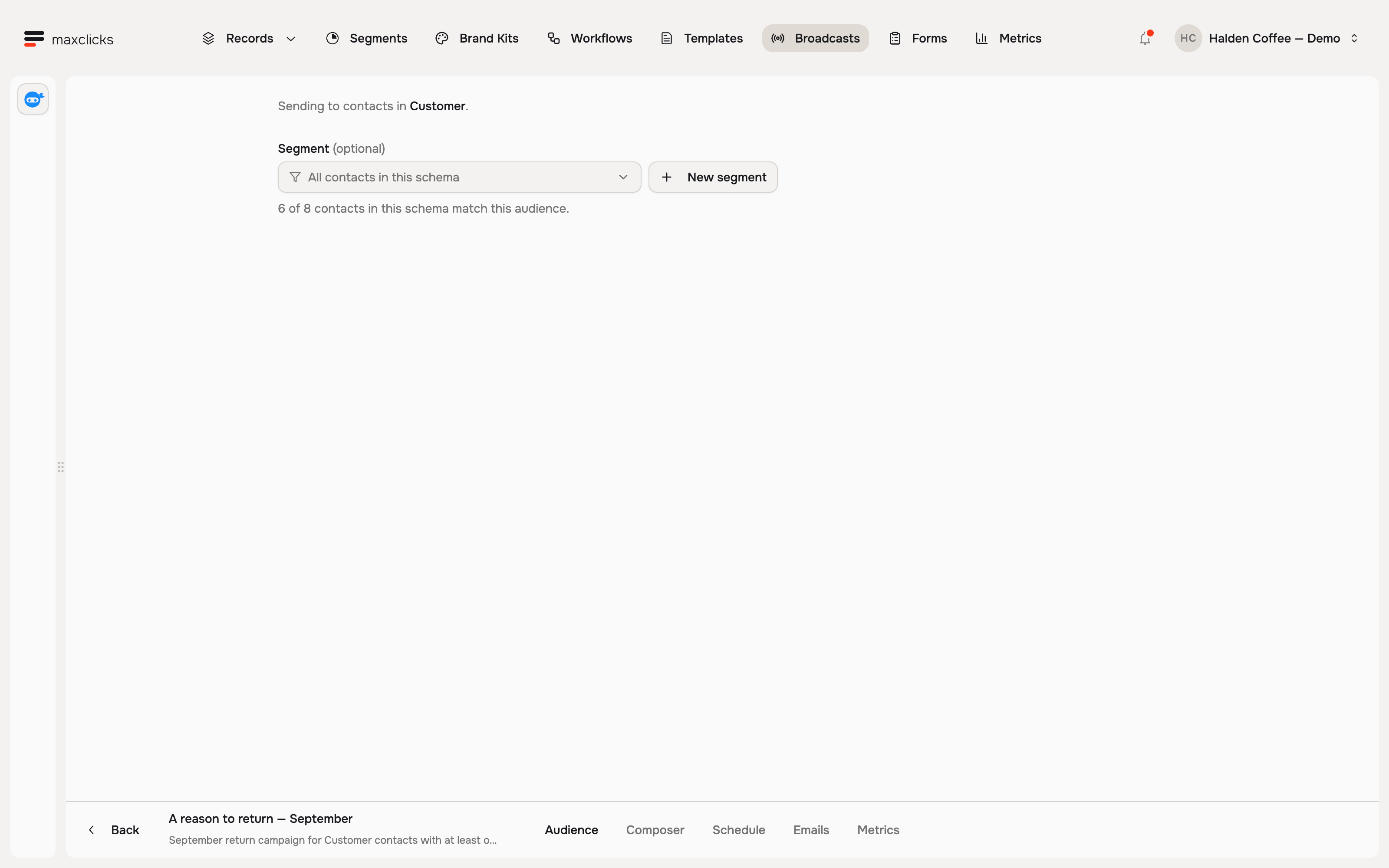
Select a saved Segment or use New segment to describe customers with a recorded coffee purchase in the last 30 days. Leaving the segment empty selects the whole schema.
Check one recent buyer who should match and one older buyer who should not. Confirm that the purchase belongs to the customer. The count is an estimate of matches: missing addresses, duplicate addresses, consent and suppressions can reduce actual sends. A pending count is not a count of zero.
Write the email
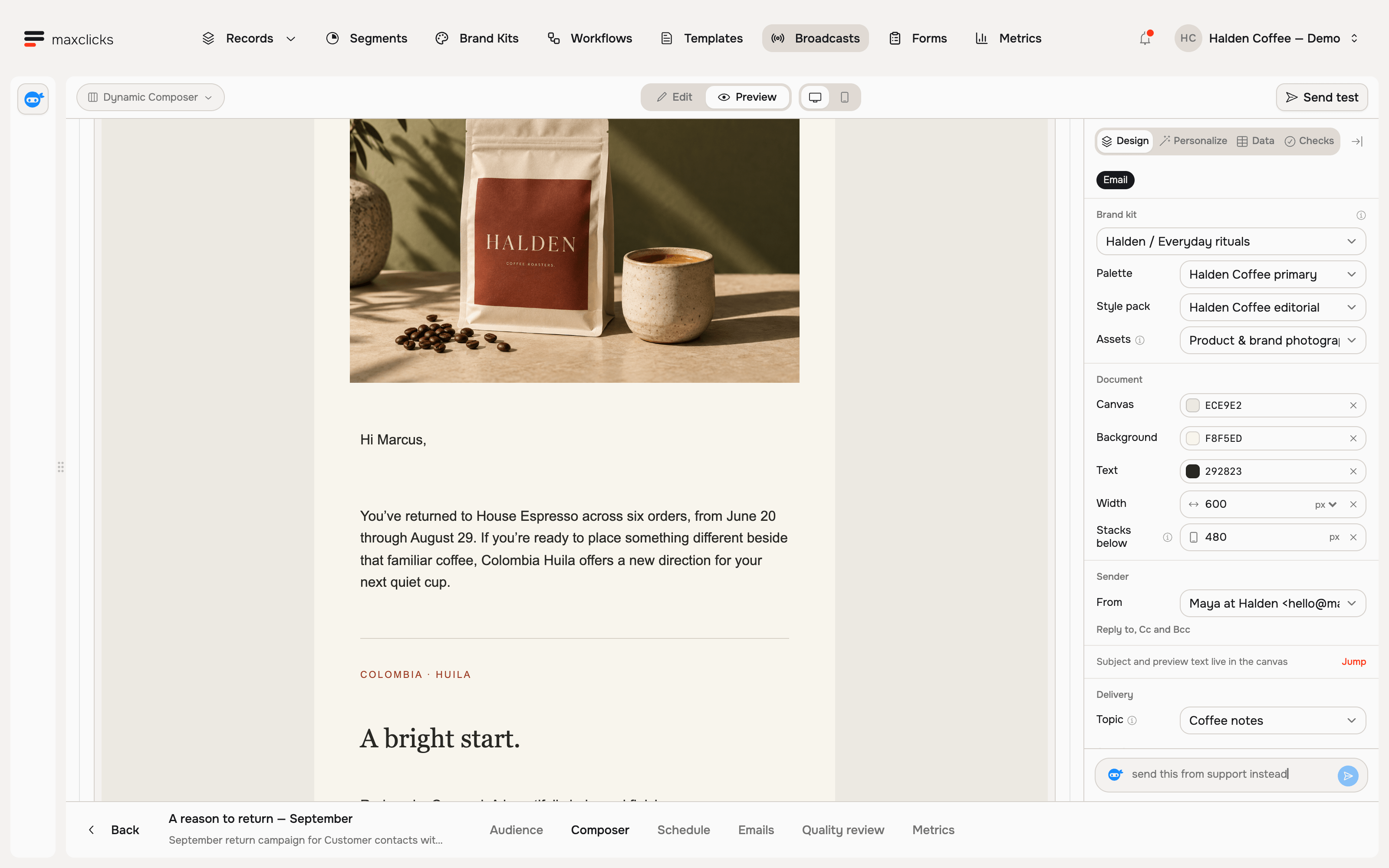
In Composer, set the sender, subject, product description and product-page button. Select your brand kit. In Data, inspect the audience contact and select any purchase relationship the content needs.
Use Liquid for fixed customer facts and an optional Adaptyle passage for a relevant introduction. Define a general fallback when purchase context is missing. Preview both rich and sparse samples, then send yourself a test.
The Halden image below is a saved generated preview, not a delivered campaign.
Schedule and send
In Composer, review Checks, topic, links and Personalize → Estimate. Open Send and review the audience. Choose Save as draft, Send now or Schedule for later, and confirm the displayed date and time.
Preparation can begin before the scheduled dispatch time. It fixes the audience and campaign revision, renders messages and performs the applicable quality checks. Later audience edits do not add customers to that run. Consent and suppression are still checked before dispatch.
Before preparation, Cancel send on Metrics returns the campaign to editing. After preparation starts, Stop sending cancels remaining work permanently; emails already being sent may still arrive.
After the send
Open Emails to inspect individual attempts, then Metrics for delivery and engagement. An individual email’s Sent status means provider acceptance; Delivered is a later event. The campaign funnel’s Sent total can include pending or unsuccessful email records, so inspect the report definitions. An open does not prove a human read the message.
If progress pauses, inspect the reason. A credit wait, quality hold and stopped campaign have different recovery paths. Quality review shows rejected generated emails and the evidence to inspect; eligible noncritical rejections can receive a scoped human approval. Do not duplicate a campaign just because it is waiting, since the copy can reach people who already received it.
Continue with Create and send a broadcast for the complete operating reference or Track email performance to interpret results.
Did this article answer your question?