Loading the guide…
Create and send a broadcast
Learn how to build a broadcast, choose its audience, write the email, and schedule the send.
On this page
A broadcast is a one-time email to a filtered audience drawn from a single contact schema: a newsletter, a launch announcement, a seasonal promotion. You pick who receives it, write the email once, and maxclicks renders and sends a personalized copy to each contact. This article is the full reference for every stage, from creating the broadcast to reading how the send performed. If you want the quick happy path first, read send your first broadcast, then come back here for the detail.
What a broadcast is
A broadcast targets one contact schema, such as Customer, and reaches a filtered slice of the people in it. It is marketing mail unless you set it otherwise. Marketing mail only reaches contacts subscribed to the email channel and, when the content is bound to a topic, members of that topic, and it always carries an unsubscribe link.
You choose Marketing or Transactional under Sending mode when you create the broadcast, and the choice is permanent for that email. A transactional broadcast reaches every contact in the audience regardless of subscription and carries no unsubscribe link, so reserve it for mail people are entitled to receive. Understand transactional vs marketing covers where the line sits.
A broadcast sends once. It is not a recurring campaign and it is not automated: for repeating or event-triggered email, you build a workflow instead. A broadcast is the right tool when you have a message to send to a defined audience at a chosen time.
Create a broadcast
Every broadcast starts from the Broadcasts page and is bound to one contact schema before you do anything else. The schema you choose fixes the audience pool and the fields available for personalization, so pick the schema whose people you actually want to reach.
- Open the broadcasts list
Open Broadcasts from the top navigation. The list shows your existing broadcasts and their status. Use the create control to start a new one.
- Pick who it is for
The first step, Who is this broadcast for?, takes the contact schema whose people you want to reach and, optionally, a saved segment to narrow it. There is no control to switch the schema later, so choose deliberately.
- Choose the starting place
The second step, Choose your email's starting place, sets the editor you build the email in and the Sending mode, Marketing or Transactional. The sending mode cannot be changed after the email is created. Choose an editor mode explains the four editors.
- Name it and keep going
maxclicks creates the broadcast and opens it on the Composer tab, with a Send tab beside it. There is no name field during creation: name the broadcast from the header on the broadcast page, for example October product update. You can leave at any point and return.
Choose your audience
Within the bound schema, you decide who receives the email in one of two ways, with a live count that updates as you refine it.
Everyone in the schema
Leaving the Segment field empty sends to every contact in the schema. This suits a small, clean list where you genuinely want to reach all of it. Remember that "everyone" still passes through consent filtering at send time, so unsubscribed contacts are removed before anything goes out.
A saved segment
A segment is a reusable, saved audience filter tied to a contact schema, such as Active trial users or Customers in the EU. Selecting a segment reuses a filter you have already built and can trust. Use a segment when more than one send needs the same audience: the definition lives in one place, so changing it updates every use. Learn to build one in create a segment, and see the broader picture in use segments in broadcasts and workflows.
The Segment field itself offers saved segments only. If no saved segment fits, build one: New segment beside the field opens the segment composer without leaving the broadcast, and the segment you create is saved to your space and reusable. Asking maxinja for a one-off audience is the other route: it writes a custom filter onto this broadcast alone, and the Audience tab then describes the condition in plain English.
- Open the audience
The audience is set in the first creation step and stays editable afterward on the Audience tab, or from the Edit button on the Audience card of the Summary page.
- Leave it open or pick a segment
Leave the Segment field empty to reach every contact in the schema, or select a saved segment from the list to narrow it. Use New segment to describe a new audience in plain language and let maxinja build it.
- Check the live count
maxclicks shows a live count of matching contacts as you refine the audience. Treat it as a sanity check: a count of zero means no one matches, and a count far larger than expected means the filter is too broad.
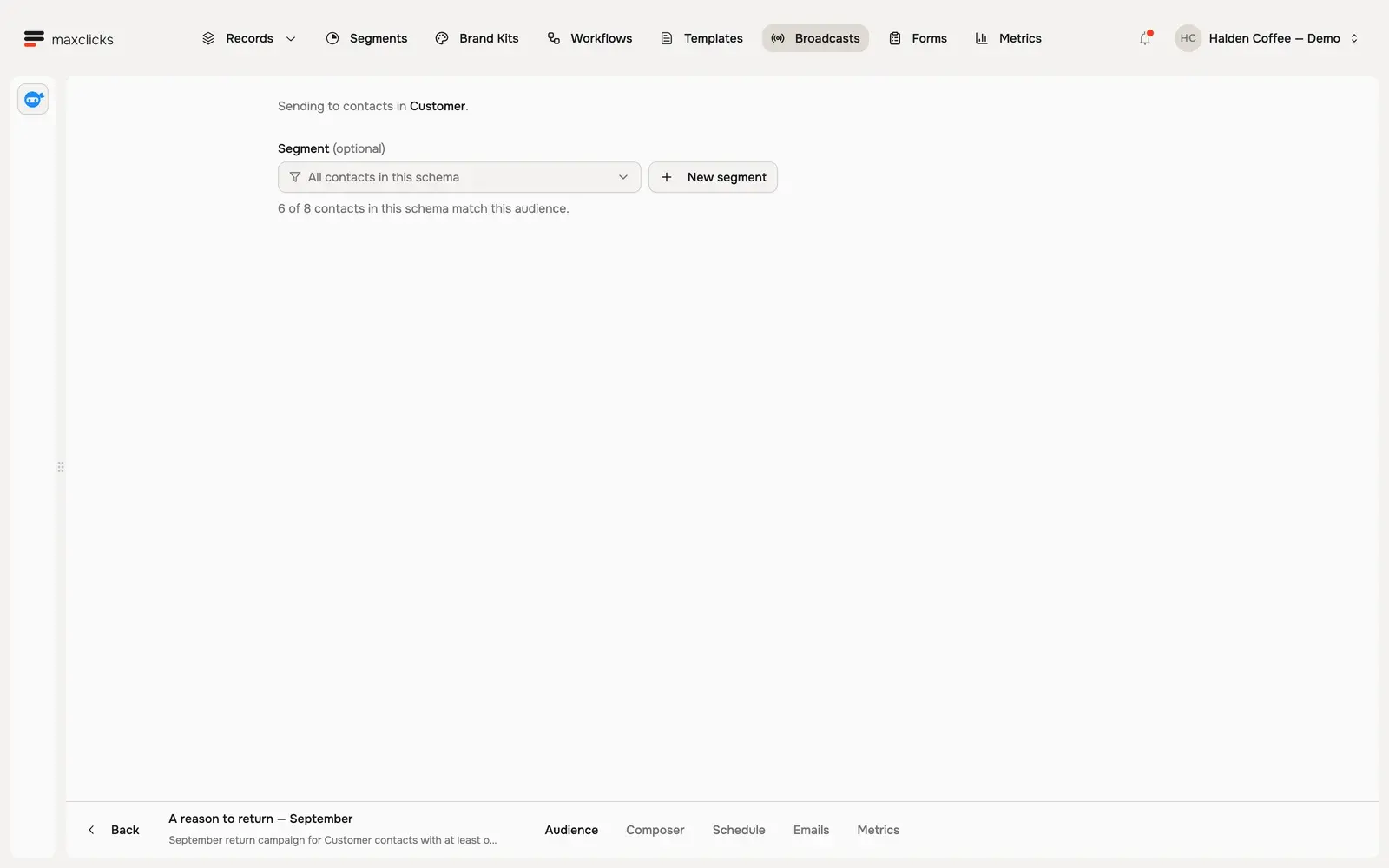
The live count estimates who matches the filter. The number actually sent is often lower, because eligibility filtering at send time removes contacts who have no email address or share an address that is already suppressed, and, on marketing mail, contacts who have not consented to email. A large gap between the count and the sends is usually consent, not an error.
Write the email content
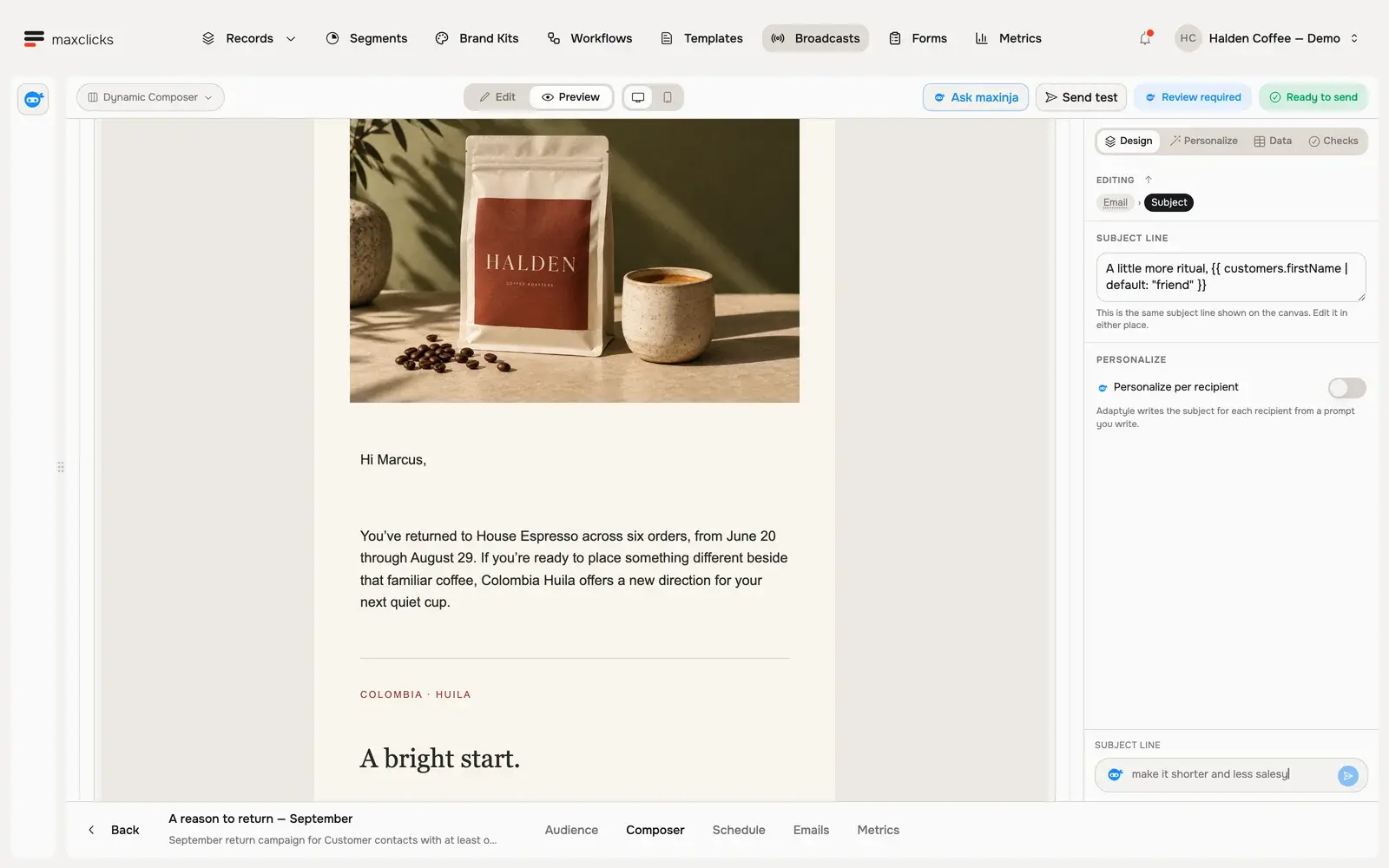
The Composer tab opens the shared email composer, the same editor used for templates and workflow emails. You write the subject and the body, then confirm the sender. In the MJML editors you also write preview text, the line that shows beside the subject in the inbox.
The composer has four editors and a live preview. Choose an editor mode explains which of the MJML and HTML editors, visual or code, fits your content. You can personalize the email with Liquid variables and maxinja personalization prompts, both covered in personalize with Liquid and Adaptyle.
Set the sender
Confirm who the email comes from. You either pick a verified domain and type the display name and local part by hand, such as news at example.com, or select a saved sender profile that already bundles those together. The from-domain must be verified, which is why verifying your sending domain comes first.
The injected footer
maxclicks injects a footer into every rendered send: your brand footer content and disclaimers, your copyright line, your company mailing address, your social links, and, on marketing mail, an unsubscribe and preferences link. On the Free plan the footer also carries a small powered by maxclicks logo, which Premium removes. You do not add any of these by hand. To control the branding that shapes the footer and the email styling, publish a brand kit first.
Before you schedule, send yourself a test. A test send needs a verified domain and a chosen sender, goes out as transactional mail, and counts against your sending allowance like any other email. It is the fastest way to catch a broken link or an empty variable. The full walkthrough is in send a test email.
Schedule the send
Once the audience and content are ready, open the Send tab and choose when the broadcast goes out. The Summary page shows what goes out, who receives it, and when, with three scheduling options on the Schedule or send card.
- Keep it as a draft
Choose Save as draft if it is not ready, then press Save draft. A draft never sends. It holds your audience and content until you return and finish it.
- Send now or schedule for later
Choose Send now to begin sending as soon as you confirm, or Schedule for later and pick a future date and time. A scheduled broadcast waits until its timestamp and then starts on its own.
- Confirm from the summary
Review the audience count and the sender on the Summary page, then press Send now or Schedule & Send. That press is the point of no return for editing.
What happens during sending
A broadcast sends in two stages, and understanding them explains the numbers you see afterward.
At the scheduled time, maxclicks resolves the audience live. Whether you left the segment empty or picked one, the matching contacts are computed at that moment, not when you built the broadcast, so a contact who unsubscribed in the meantime is already excluded. Each eligible contact then gets a personalized email rendered and a per-contact broadcast run scheduled. Eligibility means the contact has an email address, passes the consent checks when the broadcast is marketing mail, and is deduplicated by email address so one person is not messaged twice.
In the second stage, each rendered email sends individually, with the sending rules rechecked at the moment of dispatch: the domain is still verified, credits and email quota remain, and the recipient address is not suppressed. Because each contact is handled on its own, a render failure or a send failure for one contact does not abort the broadcast: the rest continue, and the failure is recorded on that contact's run.
This per-contact model is why the audience count and the sent count can differ: the count estimates who matches, the sends reflect who was eligible. After the send, each broadcast has a metrics tab with real delivery and engagement data. Read track email performance to interpret it.
Duplicate a broadcast
Open the ... menu on any row of the Broadcasts page and choose Duplicate. maxclicks makes a copy and opens it, ready to adjust and send without rebuilding anything.
The copy keeps the parts you spent time on: the contact schema, the audience (the segment you picked, or the custom filter maxinja wrote), and its own copy of the email, including the content, the ticked computed fields, the data properties, and the sample data behind the preview. The email is a genuine copy rather than a shared one, so editing the duplicate never touches the original.
What the copy does not keep is the send. It arrives unscheduled, with no scheduled time, no sending history, and no failure reason, so nothing goes out until you schedule it yourself. The name comes across unchanged, so rename the copy if you want to tell the two apart in the list.
Duplicating needs Write permission, the same as creating a broadcast.
If a broadcast fails
Once sending starts, the schedule locks permanently, whether the broadcast finishes or fails. There is no retry action, and the locked schedule cannot be reopened. Emails that already sent are unaffected, and maxclicks never double-sends a confirmed dispatch.
Only the problems that stop the whole send before any email is queued mark the broadcast itself Failed, and the status carries the reason: email sending disabled on your workspace's sending tenant, a missing sender, subject, or body, or a contact schema that no longer exists.
Everything else is recorded per contact, and the broadcast finishes as Sent even when every contact failed. An unverified from-domain, no remaining credits, a spent email quota, and a suppressed address are all checked at dispatch, one email at a time, so they show up on the individual runs and their emails rather than on the broadcast. If a broadcast reports as sent but nothing arrived, read the per-email list before you read the status.
To send again after a failure, fix the cause first (verify the domain, add credits, wait for the quota to reset), then Duplicate the broadcast and schedule the copy. Bear in mind that the copy sends to the audience as it resolves at its own send time, so contacts who already received the original are included again unless you narrow the segment.
Frequently asked questions
Do I need a verified domain to send a broadcast?
Yes, and that includes test sends. Verify your sending domain first, then pick it, or a saved sender profile on it, before you test or schedule. There is no maxclicks platform sender to fall back on.
Why is the send count lower than the audience count?
The audience count estimates who matches your filter. When the broadcast runs, contacts without an email address or sharing a suppressed address are removed, contacts without email consent are removed too when the broadcast is marketing mail, and duplicates by email are collapsed. The number actually sent is often lower as a result.
Can I change a broadcast after it starts sending?
No. Once sending begins, the audience, content, and schedule lock permanently, whether the broadcast completes or fails. Send a test and confirm the audience count before you confirm the send. To send something similar afterwards, Duplicate the broadcast and edit the copy.
Can I reuse a broadcast instead of building it again?
Yes. Duplicate on the row menu copies the broadcast with its audience and its email, and opens the copy unscheduled. Use it to repeat a send, to try a different subject line against the same audience, or to send again after a failed broadcast.
Why are my evaluated attributes empty in the email?
An evaluated attribute renders only when it is expanded. Open the Data & Recipient panel in the composer, tick the computed field you want, then preview again. Stored fields need no expansion.
What happens if one contact's email fails to render or send?
Nothing to the rest of the broadcast. Each contact has an independent run, so a single render or send failure is recorded on that contact and the other sends continue. If the broadcast as a whole fails, it shows a Failed status with the reason it failed.
Did this article answer your question?